
Preview: this page describes the next FireCAD release, planned for December 1, and the beta available now. For the current release, see Opening the Device Editor.
Command
| Command | Description |
|---|---|
ATOPEN_DEVICE_EDITOR |
Open the Device Editor on the open project's database |
Ribbon: FireCAD® Tools > Edit > Launch Project Device Editor
Prerequisites
- A FireCAD project must be open.
The Device Editor is installed with FireCAD. There is nothing extra to install.
Overview
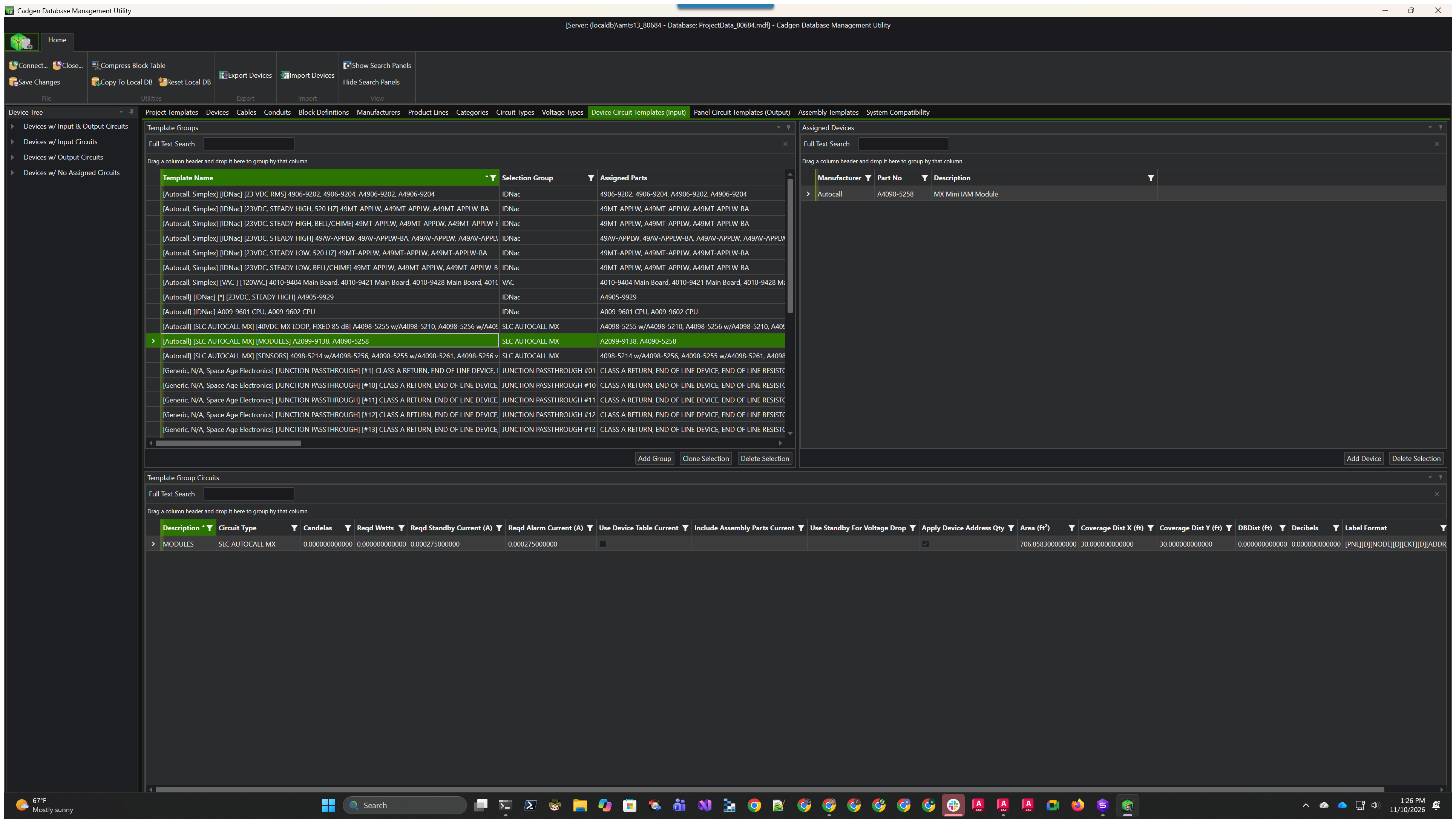
The Device Editor is the Master Template Editor, opened on the open project's own database instead of on a master database. It shows the same panes and columns as the Master Template Editor (Devices, Cables, Block Definitions, Circuit Types, Device Circuit Templates (Input), Panel Circuit Templates (Output), Assembly Templates and so on), which makes it easy to assume you are editing the catalog. You are not:
- Edits apply to this project only.
- Your master database (Cadgen's, or your own local master) is not changed.
- Other projects are not changed.
Use it when one project needs a part, a template or a flag set differently from the master, for example turning on Apply Device Address Qty for the devices in this job.
Steps
- Open the project.
- Click Launch Project Device Editor on the Edit panel, or type
ATOPEN_DEVICE_EDITORat the command line. The editor opens in its own window, already connected to the project. - Make your changes. Click Save Changes (Home tab > File) to save as you go.
- Close the editor. If you have unsaved edits, it asks "The master database has unsaved changes. Do you want to save them?". In the Device Editor this refers to the project's database. Click Yes.
- Return to AutoCAD. FireCAD applies your edits automatically: a "Please Wait..." progress window shows "Applying Circuit and Device Type Templates...", then "Updating Device Labels..." and "Updating Wirepath Labels...". FireCAD saves the project at the same time.
That is all. Your edits now apply to the devices already placed in the drawing.
Do Not Run Update Project Afterwards
Important: Do not run Update Project to "push" a Device Editor edit into the drawing. Closing the editor already does that. Update Project copies values from the master database into the project, so it puts the master's value back over the change you just made.
Update Project is the right tool for a different job: bringing new or corrected parts from the master database into a project. Use one route or the other for a given change, never both.
Why Closing the Editor Matters
When you connect a device, FireCAD copies its connection options into the project for that placed device. Editing a template in the Device Editor changes the project's template, not those copies. When the editor closes, FireCAD compares every placed device with the project's templates and updates the copies, then refreshes the labels. While the editor is still open, placed devices keep their old values.
New in the Release From December 1
The Devices, Circuit Types and template panes gain columns for fire alarm system checks, including Unit Loads, Channel Role, Unit Load Limit, Warning Voltage, DIP Switch Bits, Battery Standby Multiplier and Battery Alarm Multiplier. They are edited the same way as any other column.
If the editor cannot be found, FireCAD now shows "The Master Template Editor is not installed or not registered, so it cannot be opened. Reinstall FireCAD (or run the installer's repair)." instead of failing silently. See FireCAD Installation Issues and Fixes.
Tips
- The editor works on the project's working copy. Keep a backup of the project before large edits.
- To make a change for every future project, edit your master database in the Master Template Editor instead. New projects pick it up, and Update Project brings it into existing ones.
- If you use Cadgen's standard master database, a change you make only in the Device Editor can be overwritten by a later Update Project. Repeat the edit after Update Project if you still need it.
Related Articles
FireCAD is the industry-leading AutoCAD add-in for fire alarm system design — from circuit layout to wire routing to code-compliant reports.
Learn more and get started at getfirecad.com →
Inspect Point Integration — Fire alarm system device lists and bill of materials can be pushed directly from FireCAD into Inspect Point, eliminating manual data entry and ensuring every device is ready for inspection scheduling and ongoing asset management.
Learn more here →