
Preview: this page describes the next FireCAD release, planned for December 1, and the beta available now. For the current release, see Managing Locked Addresses.
Command
| Command | Description |
|---|---|
ATMANAGE_LOCKED_CIRCUIT_ADDRESSES |
Open the Manage Addresses window for the active circuit |
Circuits palette: Additional Circuit Commands > Manage Addresses
Prerequisites
- A FireCAD project must be open
- An active circuit must be selected in the Circuits palette
Overview
A locked address keeps its number when the circuit is readdressed. Locks come from Lock All Addresses, from Override Device Address, and from addresses you reserve yourself. The Manage Addresses window lists every locked address on the active circuit, shows which device holds each one and whether that device is still on the circuit, and lets you reserve addresses, change them or delete them.
In this release Manage Addresses replaces the old Locked Address Editor. It adds a Device and Status column, a Reserve Addresses panel that reserves a whole range at once, and Delete Not Connected, which clears the locks left behind by devices that were disconnected or deleted.
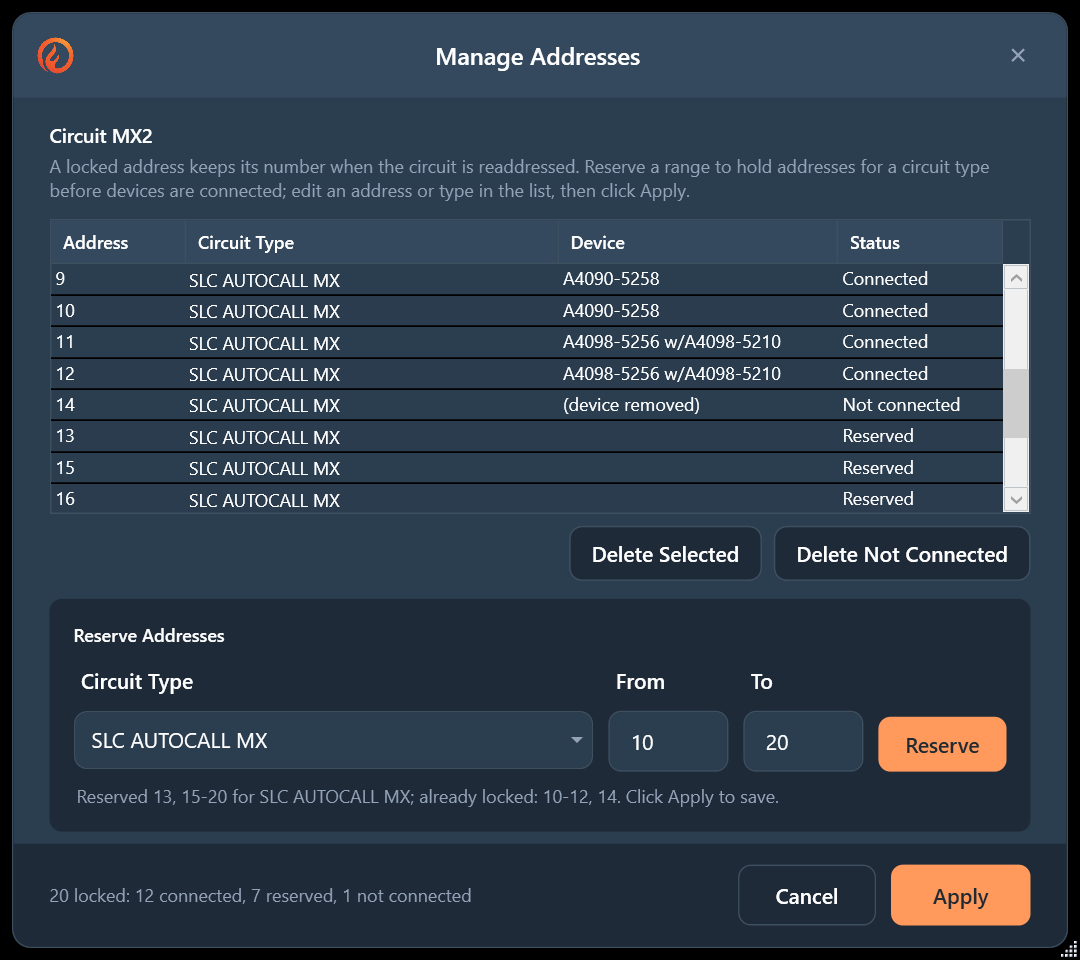
Steps
- Select the target circuit in the Circuits palette
- Expand Additional Circuit Commands and click Manage Addresses, or type
ATMANAGE_LOCKED_CIRCUIT_ADDRESSES - The Manage Addresses window opens with the circuit's locked addresses, sorted by address
- Make your changes:
- To change a locked address, edit its Address or Circuit Type in the list
- To hold addresses before devices are connected, use Reserve Addresses (see below)
- To remove locks, select them and click Delete Selected
- To remove every lock whose device has left the circuit, click Delete Not Connected
- Click Apply. FireCAD saves the changes, readdresses the circuit around the locked addresses and updates the device labels
Nothing is saved until you click Apply. Cancel, the close button or Esc closes the window and discards every change.
Address Status
| Status | Meaning |
|---|---|
| Connected | The lock belongs to a device that is still connected to this circuit |
| Not connected | The lock belongs to a device that was disconnected, moved to another circuit or deleted. Its address is still held |
| Reserved | The lock has no device. It holds the address for its circuit type until you delete it |
The line at the bottom of the window counts them, for example 12 locked: 9 connected, 2 reserved, 1 not connected.
Reserving Addresses
Reserve addresses to keep numbers free for devices that are not on the drawing yet, or for addresses already programmed in the field.
- In Reserve Addresses, pick the Circuit Type (the list shows the types this circuit carries)
- Type the first address in From
- Type the last address in To, or leave To blank to reserve a single address
- Click Reserve. The addresses are added to the list as Reserved
- Click Apply to save them
Addresses already locked for that circuit type are skipped, and the message under the panel lists them, for example Reserved 5-9, 12 for SLC SENSORS; already locked: 10-11. One reserve can add up to 1,000 addresses.
Clearing Locks Left by Disconnected Devices
When a device with a locked address is disconnected or deleted, its lock stays on the circuit and keeps the address held. In the list it shows as Not connected.
- Click Delete Not Connected
- Click Yes to delete those locks. Reserved addresses are kept
- Click Apply to save
When Apply Is Refused
Apply stops with a message, and saves nothing, when:
- An address in the list is not a whole number
- An address is less than 1
- The same address is locked twice for the same circuit type. The message names the address and the type; delete one of the two, then click Apply again
The same address can be locked once for each circuit type, so an SLC loop can hold sensor 5 and module 5.
If the changes are saved but the circuit cannot be readdressed at that moment, FireCAD says so. Click Refresh Data on the Circuits palette to readdress it.
When to Use
- You need to change a specific locked address without unlocking the entire circuit
- You want to hold a block of addresses for devices that will be added later
- Devices were removed from a circuit and their old addresses are still taken
- You need to fix an address locked twice for the same circuit type
Related Commands
- Manage Addresses (Preview) - every field and button in the window
- Locking All Circuit Addresses (Preview)
- Unlocking All Circuit Addresses
- Setting Address Overrides
- Removing Address Overrides
FireCAD is the industry-leading AutoCAD add-in for fire alarm system design — from circuit layout to wire routing to code-compliant reports.
Learn more and get started at getfirecad.com →
Inspect Point Integration — Fire alarm system device lists and bill of materials can be pushed directly from FireCAD into Inspect Point, eliminating manual data entry and ensuring every device is ready for inspection scheduling and ongoing asset management.
Learn more here →