
Preview: this page describes the next FireCAD release, planned for December 1, and the beta available now. For the current release, see Project Circuits Palette.
Overview
The Project Circuits palette is a dockable panel for working with circuits: pick a circuit, connect devices to it, reorder them, and watch its loads and voltage drop update as you work.
Layout
The palette is arranged top to bottom: circuit selection, action buttons, the connected device list, the usage summary, and the point-to-point and decibel loss calculations.
Circuit Selection
A searchable list at the top picks the active circuit. Type to filter by circuit name, voltage or connection types. Each row shows the Circuit, Nominal Voltage, Status and Types.
Action Buttons
| Button | Description |
|---|---|
| Connect | Connect devices to the selected circuit |
| Disconnect | Remove devices from the circuit |
| Insert | Insert a device at a chosen point in the circuit |
| Branch | Connect devices as a branch (T-tap) off a device on the circuit |
| Relocate Branch | Move devices to a different branch |
| Remove Branch | Put branch devices back on the trunk |
Additional Circuit Commands
| Button | Description |
|---|---|
| Refresh Data | Reload the circuit's data |
| Select Circuit Path | Select the circuit's wire paths in the drawing |
| Update Wirepath Labels | Recalculate and refresh wire path labels |
| Resequence Circuit | Change the wiring order by picking the devices in order |
| Draw Circuit Path | Draw the circuit's wire paths automatically |
| Lock All Addresses / Unlock All Addresses | Fix or release every address on the circuit |
| Manage Addresses | Open Manage Addresses (Preview) |
| Add Circuit Pair / Remove Circuit Pair | Pair two circuits, or remove the pairing |
| Project Circuits Editor... | Open the Project Circuits Editor (Preview) |
Edit Circuit Name renames the selected circuit. Lock Circuit stops connecting, disconnecting and wire path label updates on the circuit until you click Unlock Circuit.
Speed Toggles
On large projects, turn off live work while you connect devices, then turn it back on:
| Toggle | What it pauses |
|---|---|
| PTP Preview | Point-to-point voltage calculations in this palette |
| Lump Sum Preview | Lump sum voltage calculations in this palette |
| Label Update | Device and wire path label updates |
| Label Update Stored Procedure | All label update procedures |
| Disable Live Calculations | EOL and other circuit calculations in this palette |
Connected Device List
One row per device on the circuit, in wiring order:
| Column | Description |
|---|---|
| Order | Position on the circuit |
| Branch | The device's branch number (blank on the trunk) |
| Pin Branch | Ticked when the branch number is pinned |
| Label | Device address label |
| Part No | Part number |
| Location | Location property |
| Calc Length From Previous | Wire length from the previous device |
| Override Length / Use Override Length | A length you type, and whether to use it instead of the calculated one |
Reordering and branches
Right-click a device for:
- Move Up (Ctrl+Up) / Move Down (Ctrl+Down)
- Move to Trunk / Move to Branch
- Pin Branch Number / Use Automatic Branch Number
- Zoom To..., Select..., Disconnect
You can also drag rows. Reorders, branch changes and override lengths are held as pending edits until you click Apply Changes, which saves them and refreshes labels. Reset discards them. See Reordering Devices and Setting Branch Numbers (Preview).
Usage Summary
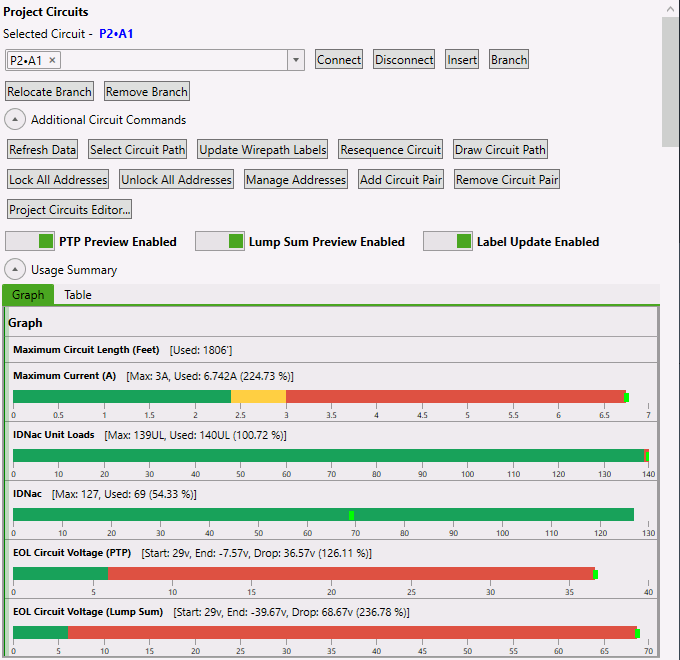
How full the circuit is, as a Graph or a Table:
- Graph: a bar per limit, green within limits, yellow past the warning threshold, red over the limit
- Table: Limit Type, Start Voltage, End Voltage, Limit/Cap, Total Used, Threshold %, Total Used %
Circuits whose connection types count unit loads, such as IDNAC and IDNet, also show a Unit Loads row, for example IDNac Unit Loads.
Point-To-Point Calculations
Per-device voltage on the circuit: Order, Resistance From Previous, Total Remaining Current, Voltage At Device, Voltage Drop At Device and Voltage Drop Percent.
Decibel Loss
Per-device power on speaker circuits: Order, Resistance From Previous, Total Remaining Watts, Power At Device and Decibel Loss At Device.
Tips
- The usage graph is the quickest health check: red needs attention
- Turn the speed toggles off while connecting a large project, then on again to check the results
- A locked circuit disables most action buttons, to prevent accidental changes
Related Commands
-
Project Circuits Editor (Preview) -
ATPROJECT_CIRCUITS_EDITOR -
Connecting Devices -
ATCONNECT -
Disconnecting Devices -
ATDISCONNECT - Reordering Devices and Setting Branch Numbers (Preview)
FireCAD is the industry-leading AutoCAD add-in for fire alarm system design — from circuit layout to wire routing to code-compliant reports.
Learn more and get started at getfirecad.com →
Inspect Point Integration — Fire alarm system device lists and bill of materials can be pushed directly from FireCAD into Inspect Point, eliminating manual data entry and ensuring every device is ready for inspection scheduling and ongoing asset management.
Learn more here →