
Preview: this page describes the next FireCAD release, planned for December 1, and the beta available now. For the current release, see Design Assistant Overview.
Commands
| Command | Description |
|---|---|
ATDESIGN_ASSISTANT |
Open the Design Assistant, FireCAD's AI assistant, in its panel |
ATASSISTANT, ATAI_REVIEW
|
Earlier names of ATDESIGN_ASSISTANT, kept so old scripts and menus still work |
ATDESIGN_REVIEW |
Open the Design Assistant and ask it for a design review |
ATDESIGN_PRECHECK |
Open the panel with the Design Precheck expanded and run it on the open drawing |
ATDESIGN_PRECHECK_REFRESH |
Run the Design Precheck again. Its earlier name ATDESIGN_ASSISTANT_REFRESH still works |
ATOPTIONS_ASSISTANT |
Open Options on the Design Assistant tab |
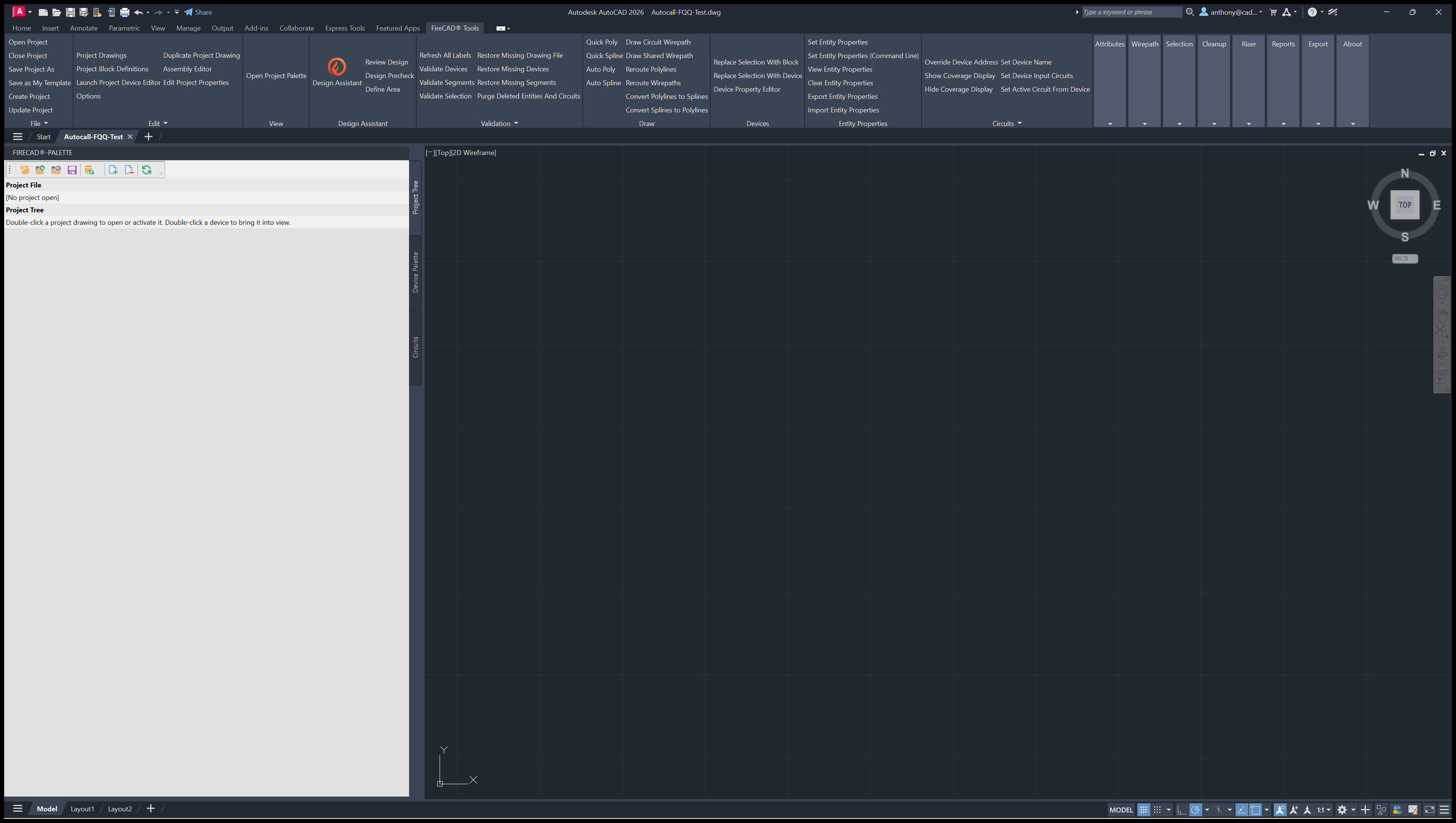
Ribbon: FireCAD > Design Assistant > Design Assistant, Review Design, Design Precheck, Define Area
Prerequisites
- A FireCAD project must be open
- Your FireCAD licence must include the Design Assistant (see Licensing and Credits)
- The Design Assistant needs an internet connection and a sign-in with your FireCAD account. The Design Precheck needs neither
Overview
FireCAD's Design Assistant panel holds two tools:
- The Design Assistant is an AI assistant that works on your open project and drawing. You ask in plain language: questions about the project or about FireCAD, room naming, device placement and connection, wirepaths, reports on their sheets, a design review, plan review comments, the Basis of Design.
- The Design Precheck is a set of 26 design rule checks that FireCAD runs on the open drawing, without the AI: project information, unconnected devices, current, watt and voltage drop limits, battery capacity, decibel loss and out-of-date reports. It spends no credits.
The Precheck replaces the validation palette that ATDESIGN_ASSISTANT opened in earlier releases. That command now opens the AI assistant; the rule checks are ATDESIGN_PRECHECK.
Licensing and Credits
- Licence. Both tools are part of the Design Assistant feature on your FireCAD licence. Every current FireCAD Add-in licence and every 2026 or later Standalone licence includes it. If FireCAD says "This licence does not include the Design Assistant" or that it has expired, contact FireCAD support.
- Sign-in. The first time you open the Design Assistant, it asks you to Sign in with your FireCAD email. The sign-in page asks you to accept the Design Assistant terms of service the first time.
- Credits. Requests that work on your project, such as placing devices, wiring, reports and design reviews, spend AI credits from your account. How-to questions about FireCAD are answered from the FireCAD knowledge base and are free. Each answer shows what it used, and the AI usage meter in the panel shows your balance. If you run out, the assistant says so and you can keep asking support questions; contact FireCAD support for more credits.
- Design Precheck. Included with the licence and free to run. It never spends credits and does not need a sign-in.
Using the Design Assistant
- Click FireCAD > Design Assistant > Design Assistant, or type
ATDESIGN_ASSISTANT - Sign in the first time
- Type a request in the box ("Ask about this drawing or FireCAD") and press Enter. Shift+Enter starts a new line
- Read the answer. A device link in the answer shows those devices in the drawing
- Click Run design review under the box when you want the Precheck plus a written review of the findings
The panel, its buttons and the conversation history are described in Design Assistant (the panel). For a full project walkthrough, see A Project Start to Finish with the Design Assistant.
Using the Design Precheck
- Open one of the project's drawings
- Click FireCAD > Design Assistant > Design Precheck, or type
ATDESIGN_PRECHECK - The panel opens with the Precheck section expanded and the rules run
- Read the findings, use Zoom to go to a flagged device, fix it, then click Recheck
The rules, the score and the Refresh Report button for out-of-date reports are described in Design Precheck.
Define Area
Define Area (ATAREA) names a space on the plan with one click: pick a point inside a room and FireCAD traces the walls around it, or draw the outline, or pick an existing closed polyline, then type the name. Areas go on the FA-AREAS layer. When the Design Assistant needs you to point out a space, it runs the same pick for one area. The command repeats until you press Enter or Esc.
Design Assistant Settings
The Settings button in the panel opens Options on the Design Assistant tab (ATOPTIONS_ASSISTANT): what the assistant should assume instead of asking (voltage margin, spare capacity, speaker voltage, appliance mounting, ceiling height), your own standing instructions, and the progress card. See Options: Design Assistant Tab.
Tips
- The Design Assistant and the Precheck both work on the open drawing. Open the drawing you want checked first
- Answers and drawing changes from the Design Assistant are a design aid. Check them before you rely on them; the designer of record remains responsible for the design
- Run the free Precheck as often as you like while you work, and use Run design review when you want the written review
Related Articles
- Design Precheck
- Refreshing the Design Precheck
- Design Assistant (the panel)
- Workflow: Checking Your Design
- Estimating a Job with the Design Assistant
-
Validating the Active Drawing (
ATVALIDATE, data integrity, not design rules)
FireCAD is the industry-leading AutoCAD add-in for fire alarm system design — from circuit layout to wire routing to code-compliant reports.
Learn more and get started at getfirecad.com →
Inspect Point Integration — Fire alarm system device lists and bill of materials can be pushed directly from FireCAD into Inspect Point, eliminating manual data entry and ensuring every device is ready for inspection scheduling and ongoing asset management.
Learn more here →