
Preview: new in the next FireCAD release, planned for December 1, and in the beta available now.
Commands
| Command | Description |
|---|---|
ATDESIGN_PRECHECK |
Open the Design Assistant panel with the Precheck section expanded, and run the Precheck on the open drawing if it has not run yet |
ATDESIGN_PRECHECK_REFRESH |
Run the Precheck again with current data (see Refreshing the Design Precheck) |
Ribbon: FireCAD > Design Assistant > Design Precheck
Prerequisites
- A FireCAD project must be open, and the active drawing must be one of the project's drawings
- Your FireCAD licence must include the Design Assistant (see Licensing below)
Overview
The Design Precheck checks the open drawing against FireCAD's design rules: project information, unconnected devices, circuit current and watt limits, voltage drop, battery capacity, decibel loss, out-of-date reports and more. It runs inside FireCAD on your project data, without the AI, so it spends no AI credits.
The Precheck lives in the same panel as the Design Assistant, as a section you can expand or fold away. The Design Assistant's Run design review starts from the same Precheck and then has the assistant review the findings (see Design Assistant).
The Precheck replaces the earlier validation palette that opened with ATDESIGN_ASSISTANT. That command now opens the Design Assistant.
Licensing
The Design Precheck is part of the Design Assistant feature on your FireCAD licence. Every current FireCAD Add-in licence and every 2026 or later Standalone licence includes it. The Precheck itself is free to run: it never spends AI credits, and you do not need to sign in to use it.
If FireCAD shows "This licence does not include the Design Assistant, or it has expired. Contact support to add or renew it.", contact FireCAD support.
Steps
- Open one of the project's drawings
- Click FireCAD > Design Assistant > Design Precheck, or type
ATDESIGN_PRECHECK - The Design Assistant panel opens with the Precheck section expanded, and the rules run on the open drawing. The status line reads Checking N rules... while it works
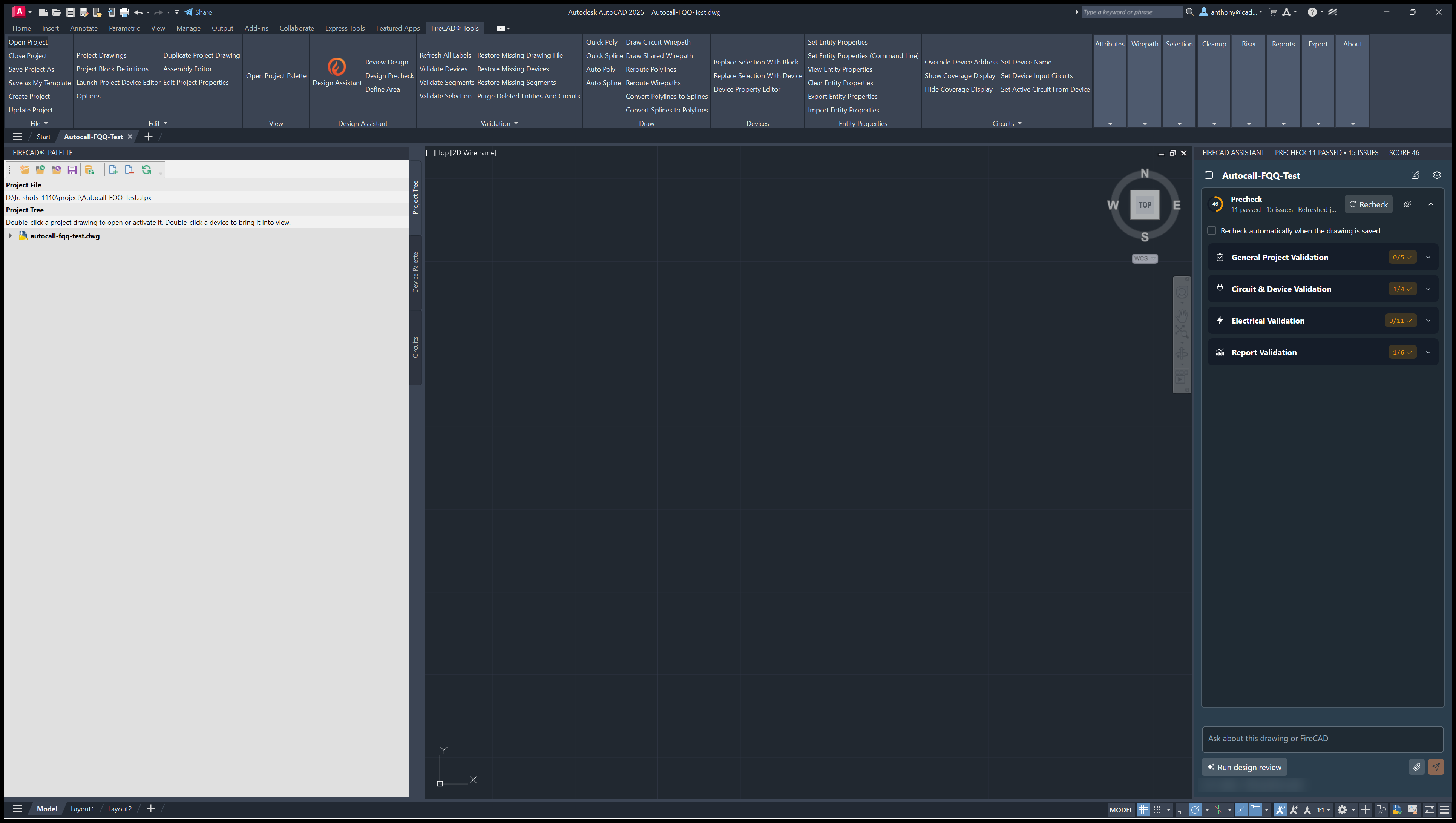
- When it finishes, the score ring shows the score out of 100 and the status line shows how many rules passed and how many have issues, for example 24 passed · 2 issues · Refreshed just now
- Expand a category to read its findings. Where a finding points at devices, click Zoom to go to the device, or Zoom All to see every device the rule flagged
- Fix the issue in the drawing or the project, then click Recheck
If you run ATDESIGN_PRECHECK on a drawing that is not part of the open project, FireCAD refuses with "The open drawing is not part of this project. Open one of the project's drawings; the precheck and the review run on the open drawing."
The Precheck Section
| Item | What it does |
|---|---|
| Score ring | The score out of 100. Green from 80, amber below 80 |
| Precheck title and FREE badge | The section's name. FREE is a reminder that the Precheck spends no credits |
| Status line | Not run yet., Checking N rules..., or N passed · N issues · Refreshed ... |
| Run Precheck | Shown before the first run on this drawing |
| Recheck | Shown once there are results. Runs every rule again |
| Hide Precheck (eye icon) | Folds the section away so the conversation has the whole panel. A Precheck chip in the panel header brings it back |
| Expand arrow | Opens or closes the results |
| Recheck automatically when the drawing is saved | When checked, the Precheck runs again each time you save the drawing |
While the Precheck section is expanded it fills the panel; fold it to get back to the Design Assistant conversation.
What the Precheck Checks
The Precheck runs 26 rules in four groups. A rule that has nothing to check passes. For example, the topology rules for Autocall and Simplex channels say "no circuit has this limit set. Not applicable." on every other system.
General Project Validation
| Rule | Checks |
|---|---|
| Project Main Information | The project name and address are filled in |
| Project Classification Information | The occupancy classification is present |
| Owner and Occupant Information | Owner and occupant details are filled in |
| Installer and Designer Information | The design package names the responsible designer and installer |
| Scale Information | The drawing has properly configured scale information |
Fill in the project information with Edit Project Properties (ATEDIT_PROJECT_PROPERTIES).
Circuit & Device Validation
| Rule | Checks |
|---|---|
| Unconnected Devices | Devices that lack required input connections. It respects each part's Required Connection Qty (Device Editor), so a device with alternative connection options only needs the number of connections its part requires |
| Device Locations | Addressable devices have location descriptions |
| Device Quantity Exceeded | The number of devices on a circuit against its quantity limits, including addresses and unit loads where the circuit type has them |
| Riser Diagram Synchronization | The riser diagram matches the current circuit and device data |
Electrical Validation
| Rule | Checks |
|---|---|
| Battery Capacity Exceeded | Required battery capacity (24 hours standby plus alarm time) against the panel's charging capacity, using the project's battery calculation settings |
| Voltage Drop Exceeded | End-of-line voltage against each device's minimum operating voltage, using the project's voltage drop method (point to point or lump sum) |
| Current Limits Exceeded | Circuit standby and alarm current against the circuit's limits |
| Total Alarm Current Exceeded | Each card's total alarm current against that card's capacity |
| Watt Limits Exceeded | Circuit wattage against the circuit's watt limit |
| Max Decibel Loss Exceeded | Decibel loss on speaker circuits against the maximum allowed |
| Max Circuit Length Exceeded | Circuit length against the manufacturer's maximum |
| Isolator Spacing and Branch Length | Devices between isolators and the longest run to a device, on circuits that carry these limits |
| Repeaters In Series | The number of repeaters in series, on circuits that carry this limit |
| Channel Device Caps | Per-channel device caps, on circuits that carry them |
| Communications Voltage Drop | Communications voltage drop, on circuits that carry this limit |
The last four rules apply to the Autocall and Simplex IDNAC channel limits. See Autocall and Simplex Update - Preview.
The voltage drop method is one setting for the whole project. Change it in Options > Reports > Voltage drop calculation (Panel Summary and Design Precheck) or on the Design Assistant tab of Options. The Panel Summary, the Precheck and the Design Assistant all follow it.
Report Validation
| Rule | Checks |
|---|---|
| Device Address Schedule | The device schedule is placed and up to date |
| Device Legend | The device legend is placed and up to date |
| Bill of Materials | The bill of materials is placed and up to date |
| Battery Calculation Reports | The battery calculation reports are placed and up to date |
| Voltage Drop Reports | Point-to-point, point-to-point summary, lump sum and lump sum summary reports are placed and up to date |
| Decibel Loss Reports | Decibel loss, decibel loss summary, speaker schedule and speaker schedule summary reports are placed and up to date |
A report is out of date when the data it was built from has changed since it was placed. Where FireCAD can rebuild the report in place, the finding shows a Refresh Report button. Click it to regenerate that report table at the same location.
Severity and Score
Each finding is rated Critical, High, Medium, Informational or Suggestion. The Total Score combines the results of all rules into a single figure out of 100. Use it to track progress as you fix issues, not as a pass mark: read the findings themselves before you issue drawings.
When to Use
- After connecting devices and drawing wirepaths, to catch limits and missing connections
- After changing the project's battery or voltage drop settings
- Before issuing drawings or a submittal, to confirm every placed report is current
- Before asking the Design Assistant for a design review
Tips
- The Precheck reads the project database, not the drawing geometry. After editing wirepaths, run Update All Wire Labels (
ATUPDATE_ALL_CIRCUIT_PATHS) so circuit lengths are current before you recheck - The Precheck checks the open drawing. Open each project drawing in turn to check them all
- Turn on Recheck automatically when the drawing is saved while you are fixing a list of issues
-
ATDESIGN_PRECHECK_REFRESHreruns the Precheck from the command line or a script. Its earlier nameATDESIGN_ASSISTANT_REFRESHstill works
Related Articles
- Design Assistant and Design Precheck Overview
- Refreshing the Design Precheck
- Design Assistant (the panel)
- Workflow: Checking Your Design
- Validating the Active Drawing
FireCAD is the industry-leading AutoCAD add-in for fire alarm system design — from circuit layout to wire routing to code-compliant reports.
Learn more and get started at getfirecad.com →
Inspect Point Integration — Fire alarm system device lists and bill of materials can be pushed directly from FireCAD into Inspect Point, eliminating manual data entry and ensuring every device is ready for inspection scheduling and ongoing asset management.
Learn more here →