
Preview: this page describes the next FireCAD release, planned for December 1, and the beta available now. For the current release, see Installation and Loading.
Choose Your Version
FireCAD comes in two versions. Choose the one that matches your setup:
| Version | Description | Requires |
|---|---|---|
| FireCAD Standalone (2027 or 2026) | Complete application with its own AutoCAD engine | Nothing else; it runs on its own |
| FireCAD Add-in for AutoCAD | Adds FireCAD tools to your existing AutoCAD | AutoCAD 2025, 2026 or 2027 |
All download links, including the add-in for older AutoCAD versions, are in FireCAD Install Instructions and Download Links.
FireCAD Standalone
FireCAD 2027 and FireCAD 2026 use the same license key. We recommend FireCAD 2027 for new installs.
- Download the installer: FireCAD 2027 Standalone (or FireCAD 2026 Standalone).
- Run it and follow the prompts. It installs everything in one step, including the Microsoft prerequisites and the FireCAD database and update utilities. Restart your computer if prompted.
- Launch FireCAD from the desktop shortcut or the Start menu.
- Enter your license key when prompted. See Licensing.
You do not need to run a separate .msi file. The .msi downloads are only in-place updates for a computer that already has that year of FireCAD installed.
FireCAD Add-in for AutoCAD
- Close AutoCAD if it is running.
- Download the installer: FireCAD Add-in for AutoCAD.
- Run it and follow the prompts. Restart your computer if prompted.
- Open AutoCAD 2025, 2026 or 2027. FireCAD loads automatically.
- Enter your license key when prompted.
Verifying Your Installation
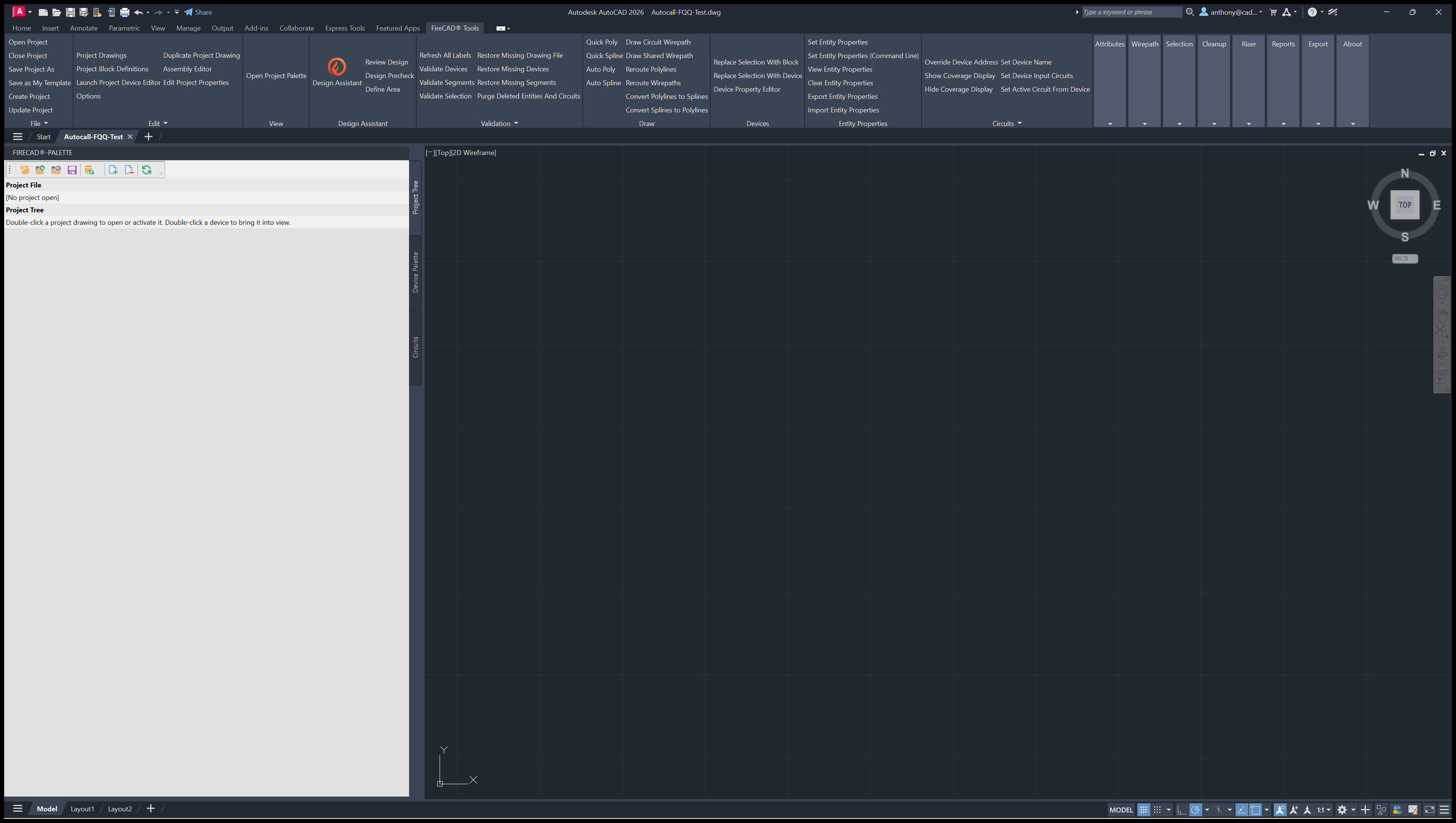
After launching, confirm FireCAD is loaded:
- Look for the FireCAD® Tools ribbon tab.
- Look for the FireCAD project palette docked at the side of the window.
- If the palette is not visible, type
ATSHOWat the command line.
The FireCAD Ribbon
The FireCAD® Tools ribbon tab groups the commands into panels: File, Edit, View, Validation, Draw, Devices, Attributes, Entity Properties, Circuits, Wirepath, Selection, Cleanup, Riser, Reports and Export.
Updating FireCAD
FireCAD checks for updates when it starts and shows a notice when a new build is available. To check yourself, click Check For Updates on the File panel.
In the release from December 1: on a few computers Check For Updates could not find the FireCAD updater and did nothing. It now looks in more places, and if it still cannot find the updater it tells you so. If that happens, download and run the current installer from FireCAD Install Instructions and Download Links.
Supported Versions
| Version | Supported |
|---|---|
| FireCAD 2027 Standalone | Yes (recommended) |
| FireCAD 2026 Standalone | Yes |
| AutoCAD 2027 (Add-in) | Yes |
| AutoCAD 2026 (Add-in) | Yes |
| AutoCAD 2025 (Add-in) | Yes |
| AutoCAD 2020 to 2024 (older Add-in) | Installs, but no longer updated |
A FireCAD 2024 license key does not activate FireCAD 2026 or 2027. Email support@cadgen.com for a 2026 or later key.
Common Issues
FireCAD Ribbon Does Not Appear
- FireCAD Standalone: close FireCAD and run the FireCAD Settings Reset and Menu Repair Utility, option 1. You do not need to reinstall.
- In the release from December 1: FireCAD Standalone checks its menu at startup and reloads it if the FireCAD tab is missing or the wrong menu is loaded. After an upgrade it also replaces an out-of-date copy of the FireCAD menu in your user profile.
- Add-in: check that you are running AutoCAD 2025, 2026 or 2027.
- If the ribbon appears but no FireCAD command works, see FireCAD Installation Issues and Fixes.
License Activation Prompt Appears Repeatedly
- See Licensing.
- If your license key does not work, email support@cadgen.com.
Palette Is Missing
- Type
ATSHOWat the command line to show it. - The palette can be docked on the left or right side of the window.
Anything Else
See FireCAD Installation Issues and Fixes for install failures (including error 1603), uninstalling, database errors and blocked files.
Need Help?
- Email: support@cadgen.com
- FireCAD Installation Issues and Fixes
- FireCAD Support Tools
- Licensing
- Options and Configuration
FireCAD is the industry-leading AutoCAD add-in for fire alarm system design — from circuit layout to wire routing to code-compliant reports.
Learn more and get started at getfirecad.com →
Inspect Point Integration — Fire alarm system device lists and bill of materials can be pushed directly from FireCAD into Inspect Point, eliminating manual data entry and ensuring every device is ready for inspection scheduling and ongoing asset management.
Learn more here →