
Preview: new in the next FireCAD release, planned for December 1, and in the beta available now.
Commands
| Command | Description |
|---|---|
ATCREATE_PROJECT |
The new project wizard, where you pick the project's drawings from the template gallery |
ATSAVE_AS_MY_TEMPLATE |
Save a copy of the current drawing as one of your own templates |
Ribbon: FireCAD Tools > File > Save as My Template
Overview
When you create a project, its drawings can start from a template. The new project wizard shows a template gallery with a preview of each template, so you can see the sheet before you pick it. The gallery lists two kinds of template:
| Source | What it is |
|---|---|
| FireCAD | The templates installed with FireCAD: FireCAD Project Template (ARCH expand D) and (ARCH expand E), each with a cover sheet, a sheet index and a title block on every sheet that fills in from Project Properties, and FireCAD Ember Level Training (ARCH expand D), a sample floor plan for practice |
| My templates | Your own templates, kept in your templates folder (Documents\FireCAD Templates unless you have changed it) |
FireCAD's own templates are replaced every time FireCAD is installed or updated. If you change one, for example to add your company logo to the title block, save it as one of your templates so the change is kept.
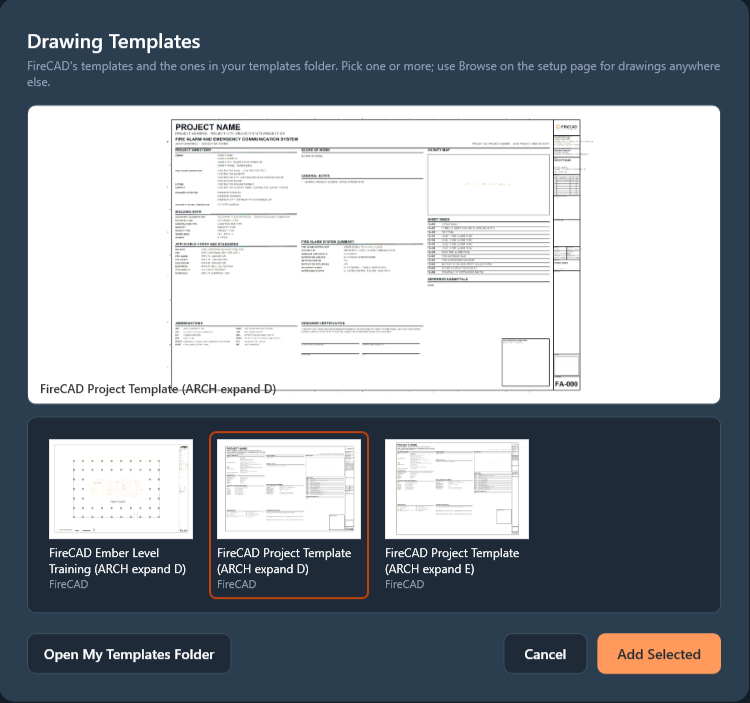
Starting a Project From a Template
- Run
ATCREATE_PROJECTand fill in the first page of the wizard - Under Project Drawings (Optional), click Templates
- In Drawing Templates, hover over a template to see a large preview. Click one or more templates to select them; a selected template is outlined
- Click Add Selected. The templates appear as drawings of the new project
- Finish the wizard
A template (.dwt) becomes a new drawing named after the project. A drawing (.dwg) is copied as it is. To use a drawing or template from anywhere else, click Browse on the wizard page instead.
Saving a Drawing as Your Template
- Open the drawing you want to keep as a template and make your changes, such as your logo or company details in the title block
- Save the drawing. The template is a copy of the saved file, so unsaved changes are not included
- On the FireCAD Tools tab, in the File panel, click Save as My Template (or type
ATSAVE_AS_MY_TEMPLATE) - Type a name for the template, or press Enter to use the drawing's name
- If you already have a template with that name, choose Yes to replace it or No to stop
The command line shows where the template was saved. The next time you create a project, it is listed in the gallery under My templates. The open drawing keeps its own name.
Managing Your Templates
- In the gallery, click Open My Templates Folder to open the folder in Windows Explorer. Any
.dwtor.dwgyou put there appears in the gallery the next time you open it - To share templates with your team, copy the files into each person's templates folder
- If a template shows No preview saved in this file, open it in FireCAD and save it again, which stores a preview in the file
Related Commands
FireCAD is the industry-leading AutoCAD add-in for fire alarm system design — from circuit layout to wire routing to code-compliant reports.
Learn more and get started at getfirecad.com →
Inspect Point Integration — Fire alarm system device lists and bill of materials can be pushed directly from FireCAD into Inspect Point, eliminating manual data entry and ensuring every device is ready for inspection scheduling and ongoing asset management.
Learn more here →