
Preview: this page describes the next FireCAD release, planned for December 1, and the beta available now. For the current release, see Locked Address Editor.
Command
| Command | Description |
|---|---|
ATMANAGE_LOCKED_CIRCUIT_ADDRESSES |
Open the Manage Addresses window for the active circuit |
Circuits palette: Additional Circuit Commands > Manage Addresses
Prerequisites
- A FireCAD project must be open
- A circuit must be selected (active) in the Circuits palette
Overview
The Manage Addresses window lists the locked addresses on one circuit. A locked address keeps its number when the circuit is readdressed, so a device that has been programmed in the field stays at its address when devices are added, removed or resequenced. The window shows which device holds each address and whether it is still connected, reserves ranges of addresses for a circuit type, and deletes locks you no longer need.
Manage Addresses replaces the Locked Address Editor of earlier releases. The command and the Circuits palette button are the same.
Layout
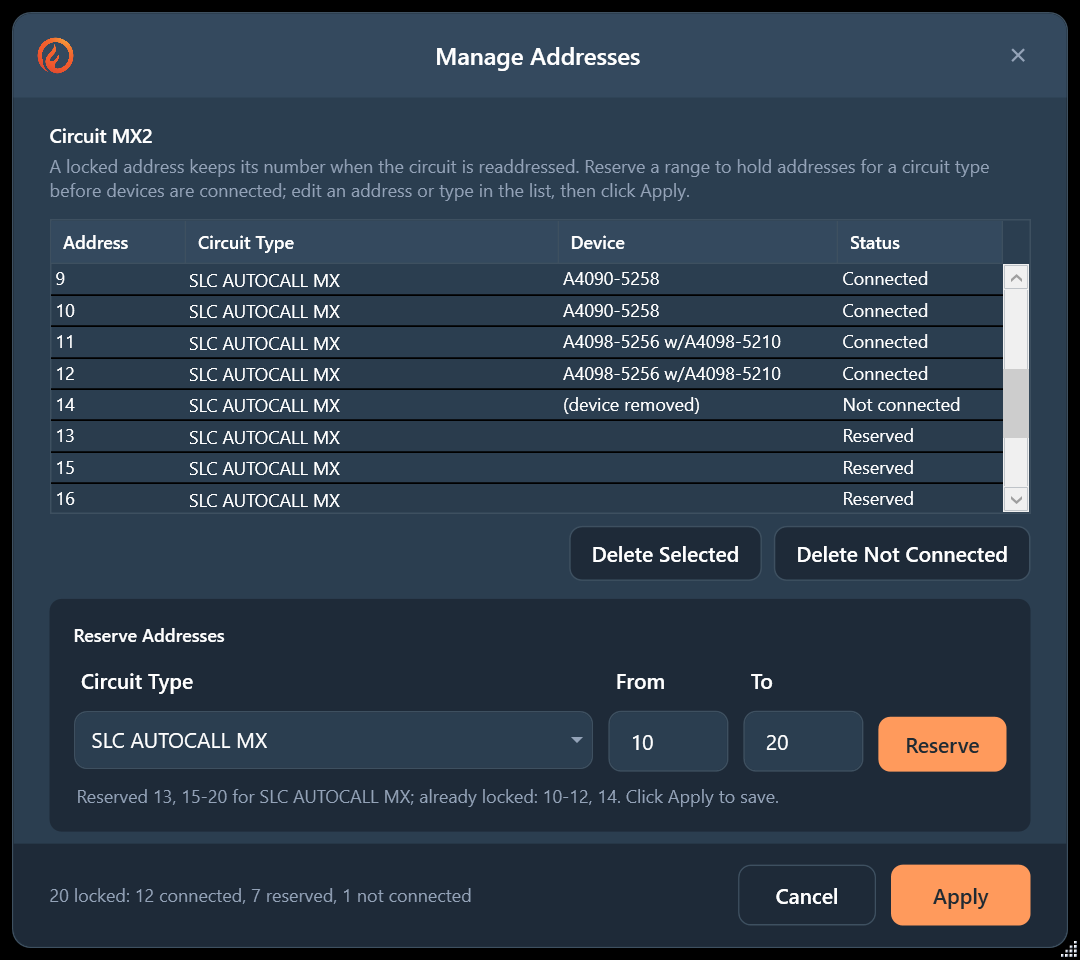
From top to bottom:
- The circuit name, for example Circuit FACP-1 L1, and a one-line explanation
- The list of locked addresses
- Delete Selected and Delete Not Connected
- The Reserve Addresses panel
- A summary line, with Cancel and Apply
Address List
| Column | Editable | Description |
|---|---|---|
| Address | Yes | The locked address number. Must be a whole number of 1 or more |
| Circuit Type | Yes | The connection type the address is locked for (for example an SLC sensor or module type). The list offers the types on this circuit, plus any type an existing lock already uses |
| Device | No | The part number of the device that holds the address. Blank for a reserved address; (device removed) when the device is gone from the project |
| Status | No | Connected, Not connected or Reserved (see below) |
The list opens sorted by address. Select several rows with Ctrl or Shift.
| Status | Meaning |
|---|---|
| Connected | The device is connected to this circuit |
| Not connected | The device was disconnected, moved to another circuit or deleted, and its lock still holds the address |
| Reserved | No device. The address is held for its circuit type until you delete it |
Reserve Addresses
| Field | Description |
|---|---|
| Circuit Type | The type to reserve the addresses for. Lists the circuit types this circuit carries |
| From | The first address to reserve |
| To | The last address to reserve. Leave blank to reserve only the From address |
| Reserve | Adds the range to the list as Reserved rows |
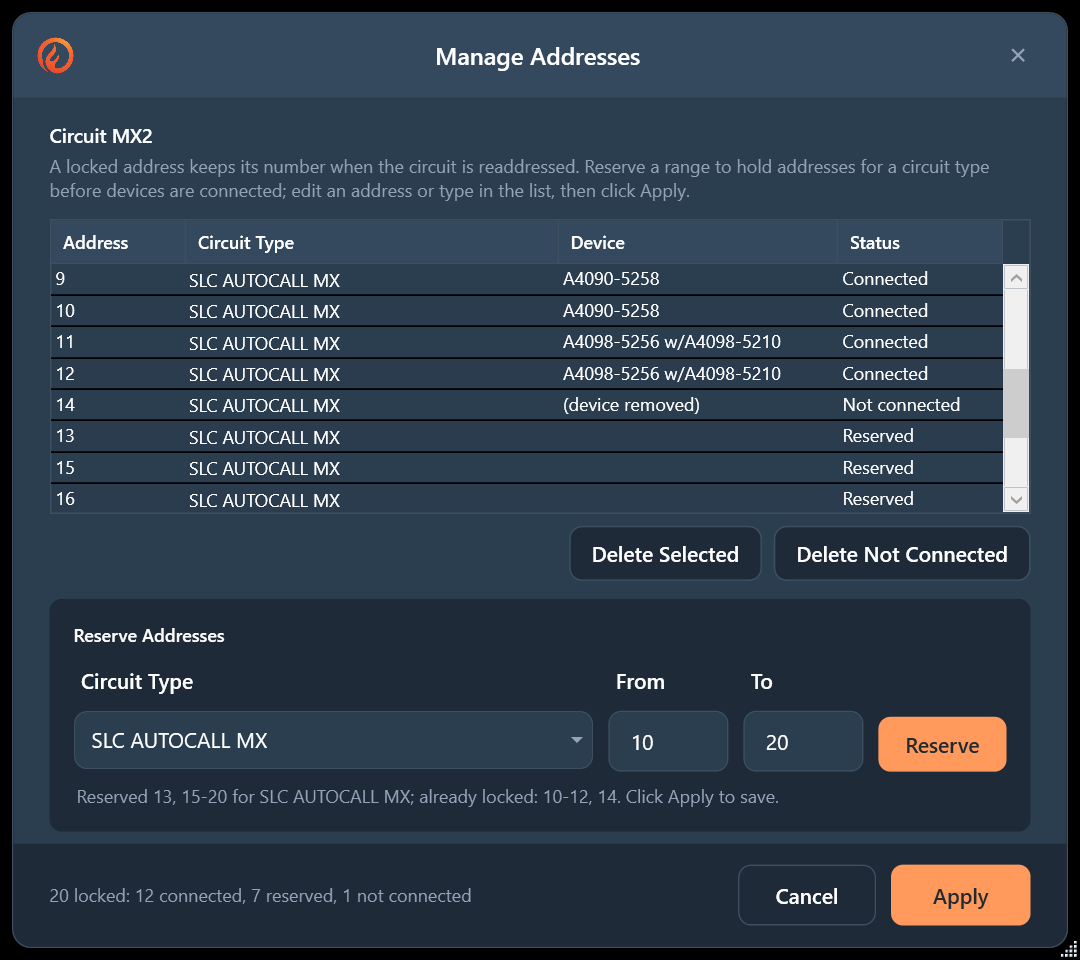
Addresses already locked for the selected type are skipped. A message under the panel says what was reserved and what was skipped, for example Reserved 20-29 for SLC MODULES; already locked: 25. Click Apply to save. One reserve adds at most 1,000 addresses; To must be the same as From or higher.
Buttons
| Button | Action |
|---|---|
| Delete Selected | Removes the selected rows from the list |
| Delete Not Connected | Removes every row whose status is Not connected, after you confirm. Reserved addresses are kept |
| Reserve | Adds the From to To range to the list (see above) |
| Apply | Checks the list, saves it, readdresses the circuit and updates the device labels |
| Cancel | Closes the window without saving. The close button and Esc do the same; Esc inside a cell being edited cancels only that edit |
Deleting and reserving change only the list until you click Apply.
Validation
Apply saves nothing and shows a message when:
- An address in the list is not a whole number
- An address is less than 1
- The same address is locked twice for the same circuit type (Address 5 is locked twice for ... Delete one of them, then click Apply.)
The same address may appear once for each circuit type.
What Happens on Apply
- The locked addresses are saved to the project
- The circuit is readdressed, keeping every locked address
- Device labels on the circuit update to the new addresses
If the circuit cannot be readdressed at that moment, the changes are still saved and FireCAD asks you to click Refresh Data on the Circuits palette.
Tips
- Lock or reserve the addresses of devices already programmed in the field before you add devices to the circuit
- After disconnecting or deleting devices, use Delete Not Connected so their old addresses become free again
- To lock every device at its current address in one step, use Lock All Addresses on the Circuits palette
Related Commands
- Managing Locked Addresses (Preview) - step-by-step tasks in this window
-
Locking All Circuit Addresses (Preview) -
ATLOCK_ALL_CIRCUIT_ADDRESSES -
Unlocking All Circuit Addresses -
ATUNLOCK_ALL_CIRCUIT_ADDRESSES -
Setting Address Overrides -
ATSET_OVERRIDE_ADDRESS - Project Circuits Palette
FireCAD is the industry-leading AutoCAD add-in for fire alarm system design — from circuit layout to wire routing to code-compliant reports.
Learn more and get started at getfirecad.com →
Inspect Point Integration — Fire alarm system device lists and bill of materials can be pushed directly from FireCAD into Inspect Point, eliminating manual data entry and ensuring every device is ready for inspection scheduling and ongoing asset management.
Learn more here →