
Preview: this page describes the next FireCAD release, planned for December 1, and the beta available now. For the current release, see Workflow: Validating Your Design.
Overview
This guide covers checking a design before you issue it: synchronizing the drawing with the project database, running the Design Precheck to find rule violations, fixing them, and optionally asking the Design Assistant for a written design review.
In earlier releases this workflow used a validation panel opened with ATDESIGN_ASSISTANT. Those checks are now the Design Precheck (ATDESIGN_PRECHECK), and ATDESIGN_ASSISTANT opens the AI Design Assistant.
Prerequisites
- A FireCAD project must be open, with one of its drawings active
- Devices should be connected to circuits and wirepaths drawn
- Your FireCAD licence must include the Design Assistant (every current Add-in licence and every 2026 or later Standalone licence does). The Precheck spends no credits; the design review in Step 6 does
Step 1: Sync the Drawing
- Type
ATVALIDATE(ribbon Validation > Validate Devices) - Validation checks segments and devices, updates project properties, and refreshes all labels
If you have edited wirepaths, also run Update All Wire Labels (ATUPDATE_ALL_CIRCUIT_PATHS) so circuit lengths are current. The Precheck reads the database, not the drawing geometry.
Step 2: Run the Design Precheck
- Click FireCAD > Design Assistant > Design Precheck, or type
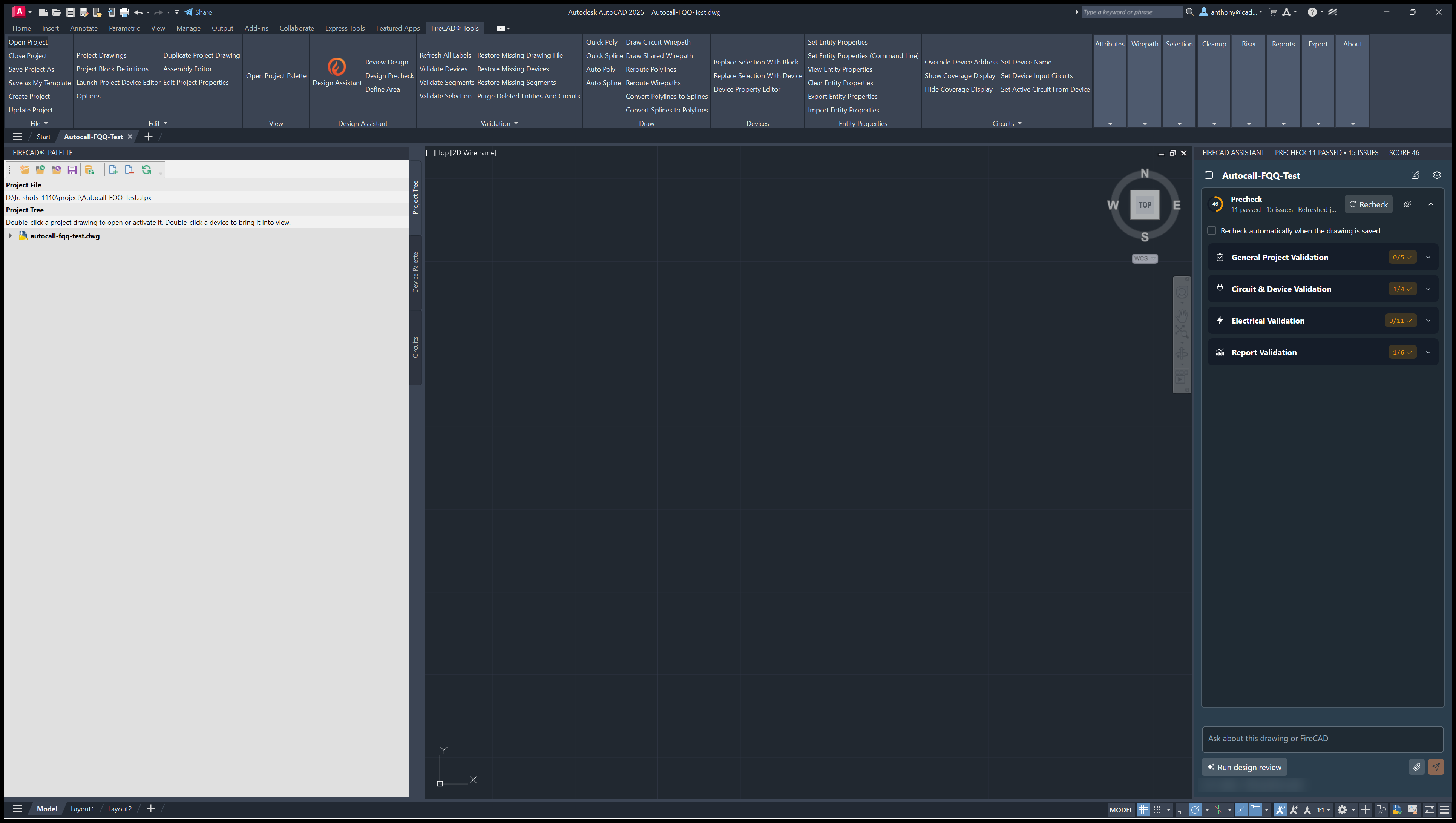
ATDESIGN_PRECHECK - The Design Assistant panel opens with the Precheck section expanded, and the rules run on the open drawing
- The score ring shows the score out of 100, and the status line shows how many rules passed and how many have issues
Step 3: Review the Findings
Findings are grouped in four categories:
| Category | Examples |
|---|---|
| General Project Validation | Project name and address, classification, owner and occupant, designer and installer, drawing scale |
| Circuit & Device Validation | Unconnected devices, device locations, device quantity exceeded, riser diagram synchronization |
| Electrical Validation | Battery capacity, voltage drop, current limits, total alarm current per card, watt limits, decibel loss, circuit length, and the Autocall/Simplex channel topology limits |
| Report Validation | Placed reports that are missing or out of date |
Each finding is rated Critical, High, Medium, Informational or Suggestion. Click Zoom on a finding to go to the device, or Zoom All to see every device a rule flagged. The full rule list is in Design Precheck.
Step 4: Fix the Issues
| Issue | Fix |
|---|---|
| Current or watt limit exceeded | Move devices to another circuit, or correct the circuit's limit in the Project Circuits Editor |
| Voltage drop exceeded | Shorten the run, use a heavier cable, or split the circuit. The Precheck uses the project's voltage drop method (Options > Reports) |
| Battery capacity exceeded | Reduce standby or alarm load, or check the panel's battery sizes and the project's battery settings |
| Unconnected device | Connect the device to a circuit with ATCONNECT
|
| Device quantity exceeded | Move devices to another circuit |
| Project information missing | Fill it in with Edit Project Properties (ATEDIT_PROJECT_PROPERTIES) |
| Report out of date | Click Refresh Report on the finding, or place the report again |
Step 5: Recheck
- Click Recheck in the Precheck section, or type
ATDESIGN_PRECHECK_REFRESH - The rules run again with current data and the score updates
To recheck on every save, check Recheck automatically when the drawing is saved in the Precheck section.
Step 6: Design Review (Optional)
For a written review, click Run design review under the Design Assistant's message box, or FireCAD > Design Assistant > Review Design (ATDESIGN_REVIEW). The Design Assistant runs the Precheck, inspects what it flags, and writes a review: code compliance by code and section, design recommendations and an overall status. The review spends AI credits; the Precheck alone does not. You need to be signed in to the Design Assistant.
Data Integrity and Design Rule Commands
| Command | Scope | When to Use |
|---|---|---|
ATVALIDATE |
Full drawing | After placing, moving, copying or deleting devices |
ATVALIDATE_SELECTION |
Selected devices | Quick data check on specific devices |
ATVALIDATE_SEGMENTS |
Segments and devices, wirepath labels only | After segment edits |
ATDESIGN_PRECHECK |
Design rules, open drawing | Check limits, connections and reports. No credits |
ATDESIGN_PRECHECK_REFRESH |
Design rules | Rerun the Precheck (old name ATDESIGN_ASSISTANT_REFRESH) |
ATDESIGN_REVIEW |
Design rules plus AI review | Written review. Spends credits |
Tips
- Run
ATVALIDATEbefore the Precheck so the database matches the drawing - Run the Precheck on each project drawing; it checks the open drawing only
- Use the score to track progress, but read the findings: a high score does not replace your own review
- Resolve critical and high findings before issuing construction documents
Quick Reference
| Step | Action | Purpose |
|---|---|---|
| 1 | ATVALIDATE |
Sync drawing with database |
| 2 | ATDESIGN_PRECHECK |
Run the design rule checks |
| 3 | Read the findings | Identify issues by category and severity |
| 4 | Fix issues | Address each problem |
| 5 | Recheck | Verify fixes |
| 6 | Run design review | Optional written review (credits) |
What's Next
- Generating Reports - Generate reports once the Precheck is clean
- Data Maintenance - Clean up data integrity issues
- A Project Start to Finish with the Design Assistant - The full workflow with the Design Assistant
FireCAD is the industry-leading AutoCAD add-in for fire alarm system design — from circuit layout to wire routing to code-compliant reports.
Learn more and get started at getfirecad.com →
Inspect Point Integration — Fire alarm system device lists and bill of materials can be pushed directly from FireCAD into Inspect Point, eliminating manual data entry and ensuring every device is ready for inspection scheduling and ongoing asset management.
Learn more here →