
Preview: this page describes the next FireCAD release, planned for December 1, and the beta available now. For the current release, see Workflow: Generating Reports.
Overview
This guide covers generating FireCAD reports, from selecting circuits to placing report tables in your drawing. It also explains how report validation works and how to keep reports up-to-date.
Prerequisites
- A FireCAD project must be open
- Devices must be connected to circuits
- Run
ATVALIDATEto ensure the database reflects the current drawing state
Step 1: Choose a Report Type
FireCAD provides several report types, each with its own command:
| Report | Command | Selection |
|---|---|---|
| Device Schedule | ATEXPORT_DEVICE_SCHEDULE_REPORTS |
By circuit |
| Battery Calculations | ATEXPORT_BATTERY_CALCULATIONS |
By panel |
| Point-to-Point | ATEXPORT_POINT_TO_POINT_REPORTS |
By circuit |
| Lump Sum Voltage Drop | ATEXPORT_LUMP_SUM_REPORTS |
By circuit |
| dB Loss | ATEXPORT_DB_LOSS_REPORTS |
By circuit |
| Speaker Schedule | ATEXPORT_SPEAKER_SCHEDULE_REPORTS |
By circuit |
| Bill of Materials | ATEXPORT_BOM_REPORT |
All devices |
| Device Legend | ATEXPORT_DEVICE_LEGEND |
All devices |
| Cable Legend | ATEXPORT_CABLE_LEGEND |
All devices |
| Conduit Fill Schedule | ATEXPORT_CONDUIT_FILL_SCHEDULE |
All segments |
Step 2: Select Output File
When you run a report command, a Save File dialog appears. Choose where to save the Excel file.
Step 3: Select Circuits/Panels
The Select Circuits Dialog opens for circuit-based reports:
- Left pane — Check the panels and circuits to include
-
Right pane — Configure report settings:
- Column selection and ordering
- Assembly component display options
- Text formatting (uppercase, decimal precision)
- Scale and text height
- Click Accept to generate
For BOM and Legend reports, the circuit selection pane is hidden since all devices are included.
Step 4: Review the Report
After generation:
- Report tables are placed in the AutoCAD drawing
- The Excel file opens automatically
- A fingerprint is embedded in the report's XData for future validation
Keeping Reports Up-to-Date
How Fingerprinting Works
When a report is generated, FireCAD calculates a fingerprint of the data and embeds it in the report table. Later, the Design Precheck recalculates the fingerprint from current database values and compares. If they differ, the report is flagged as out of date.
Detecting Out-of-Date Reports
- Click FireCAD > Design Assistant > Design Precheck, or type
ATDESIGN_PRECHECK - The Precheck runs on the open drawing and checks every placed report
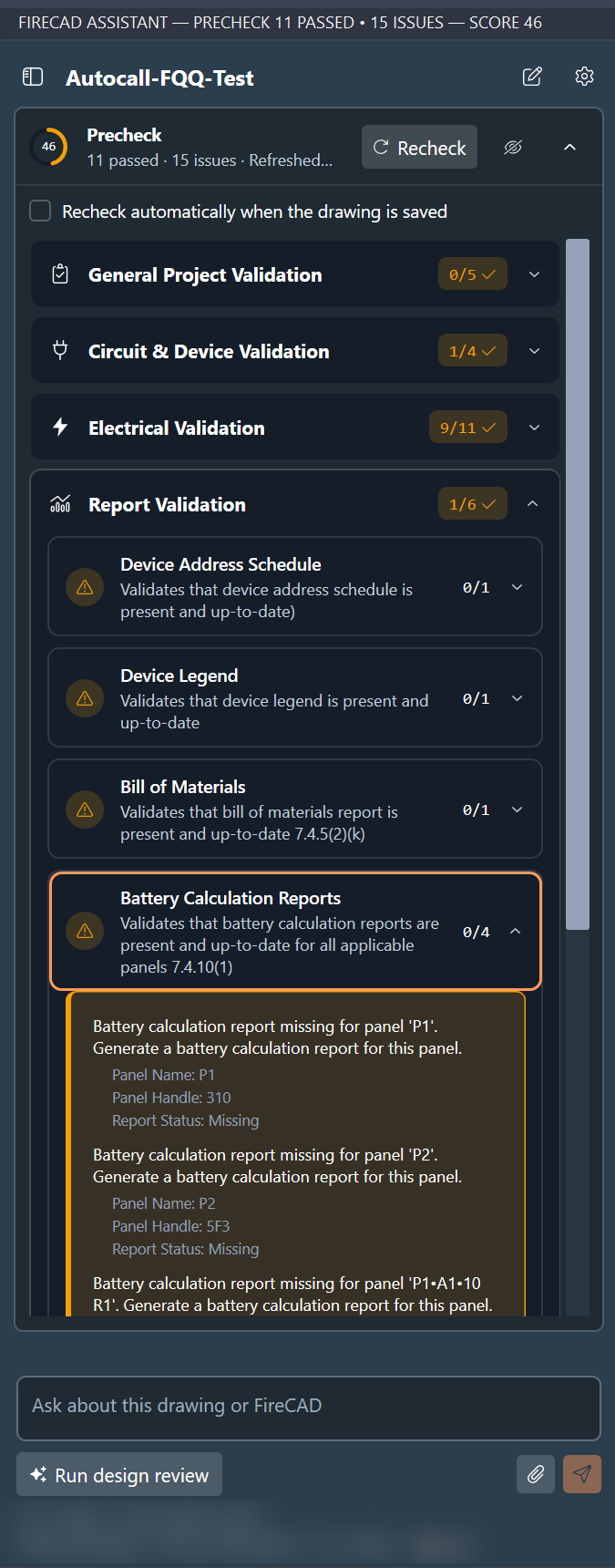
- Missing and out-of-date reports are listed under Report Validation: Device Address Schedule, Device Legend, Bill of Materials, Battery Calculation Reports, Voltage Drop Reports (point-to-point, lump sum and their summaries) and Decibel Loss Reports (decibel loss, speaker schedule and their summaries)
The Precheck spends no AI credits.
Refreshing a Report
When the Precheck flags a report as out of date and FireCAD can rebuild it in place:
- Click Refresh Report on the finding
- The old report table is deleted from the drawing
- A new report is generated with the same selections and settings
- The new report is placed at the same location as the original
Otherwise, run the report command again. ATREFRESH_REPORT is the command behind the Refresh Report button; typed on its own it only reports "No pending report refresh."
A report that has never been generated shows as Missing, with a line telling you to generate it for that panel and no Refresh Report button. Run that report's command to create it.
Report-Specific Notes
Battery Calculations
- Requires panel devices with
AssemblyBatterySizeListconfigured in the database - Calculates: (Standby Current x 24hr + Alarm Current x 5min) x 1.2 derating factor
- Validates against NFPA 72 Section 10.6.7.2
Point-to-Point / Voltage Drop
- Requires cables assigned to circuits (set in Project Circuits Editor)
- Uses Starting Calculation Voltage and Min Voltage from circuit settings
- Device order matters — hierarchical order is preserved (not sorted)
Bill of Materials / Device Legend
- Includes all devices in the project, not filtered by circuit
- No circuit selection needed
Tips
- Always run
ATVALIDATEbefore generating reports to ensure data is current - In the Design Precheck, check Recheck automatically when the drawing is saved to catch out-of-date reports right after saving
- Column selections and report settings are remembered between sessions
- Use the Previous Version Report Style checkbox for legacy report formatting without column customization
Quick Reference
| Step | Action | Purpose |
|---|---|---|
| 1 | ATVALIDATE |
Ensure data is current |
| 2 | Run report command | Start report generation |
| 3 | Save File dialog | Choose output location |
| 4 | Select Circuits dialog | Choose circuits and settings |
| 5 | Review output | Check drawing tables and Excel file |
| 6 | ATDESIGN_PRECHECK |
Check report validity |
| 7 | Click Refresh Report | Update out-of-date reports |
What's Next
- Checking Your Design - The Design Precheck and design review workflow
- Data Maintenance — Clean up and maintain data integrity
FireCAD is the industry-leading AutoCAD add-in for fire alarm system design — from circuit layout to wire routing to code-compliant reports.
Learn more and get started at getfirecad.com →
Inspect Point Integration — Fire alarm system device lists and bill of materials can be pushed directly from FireCAD into Inspect Point, eliminating manual data entry and ensuring every device is ready for inspection scheduling and ongoing asset management.
Learn more here →