
Preview: new in the next FireCAD release, planned for December 1, and in the beta available now.
Overview
A segment label override replaces the wirefill text shown on a wirepath segment with text you choose, for example [fill] + SPARE or a note for the installer. Only the text on the drawing changes. The calculated wirefill, conduit fill, conduit IDs and every report keep using the circuits actually routed on the segment.
Label overrides replace circuit pairs (Add Circuit Pair / Remove Circuit Pair). A circuit pair made a label read differently by counting a circuit on wires it does not run on, so the circuit was also counted in wire fill and reports. An override changes only the label.
Commands
| Command | Description |
|---|---|
ATOVERRIDE_SEGMENT_LABEL |
Set or clear the label override on the selected segments |
ATCLEAR_SEGMENT_LABEL_OVERRIDES |
Remove the label override from the selected segments, or from every segment on the drawing |
ATCONVERT_CIRCUIT_PAIRS |
Turn existing circuit pairs into label overrides |
Prerequisites
- A FireCAD project must be open
- The drawing must have wirepath segments
Setting a Label Override
- Select one or more wirepath segments
- Click Override Segment Label in the Project Circuits palette (where Add/Remove Circuit Pair used to be), or type
ATOVERRIDE_SEGMENT_LABEL - In the Override Segment Label window, type the text in Override. Double-click a variable in the list to insert it
- Check Preview, which shows what the first selected segment will read
- Click Apply
[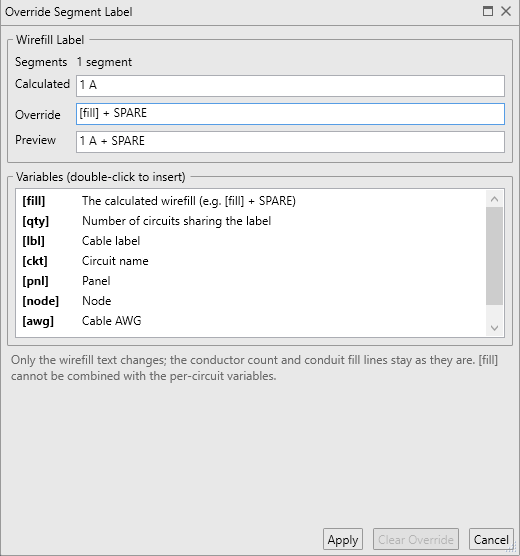 ](https://xenonstore.blob.core.windows.net/$web/help/images/04-17-override-dialog-full.png)
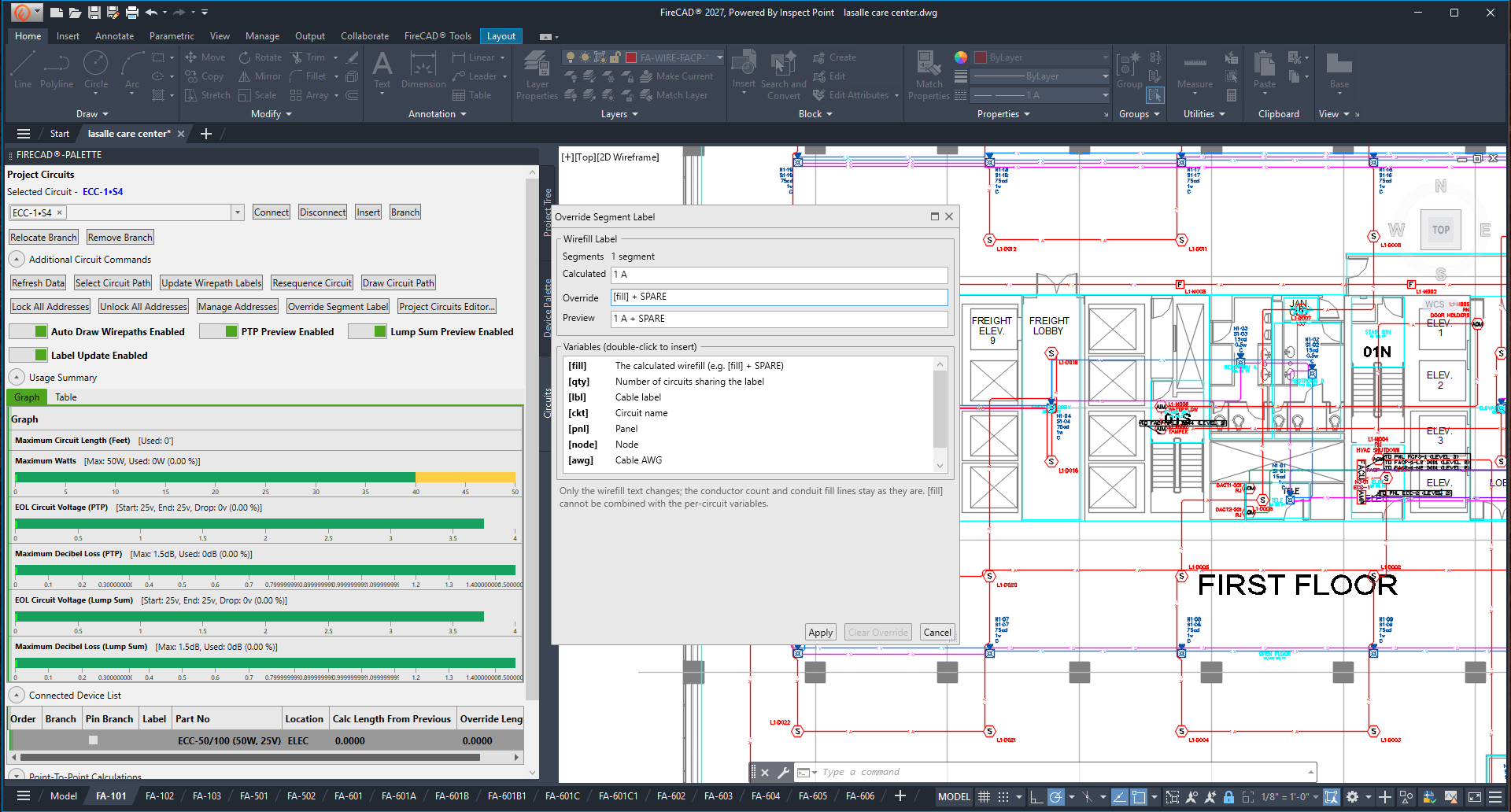
The window shows:
| Field | What it shows |
|---|---|
| Segments | How many segments you selected |
| Calculated | The wirefill FireCAD calculates from the circuits on the segment. Reports, conduit fill and the Design Assistant keep using it |
| Override | The text to show instead |
| Preview | The wirefill the first selected segment would show |
Only the wirefill text changes; the conductor count and conduit fill lines of the label stay as they are.
Variables
| Variable | Gives |
|---|---|
[fill] |
The calculated wirefill, for example [fill] + SPARE
|
[qty] |
Number of circuits sharing the label |
[lbl] |
Cable label |
[ckt] |
Circuit name |
[pnl] |
Panel |
[node] |
Node |
[awg] |
Cable AWG |
[cond] |
Cable conductors |
Use the override three ways:
-
Plain text shows exactly as typed, for example
SPARE CONDUIT. -
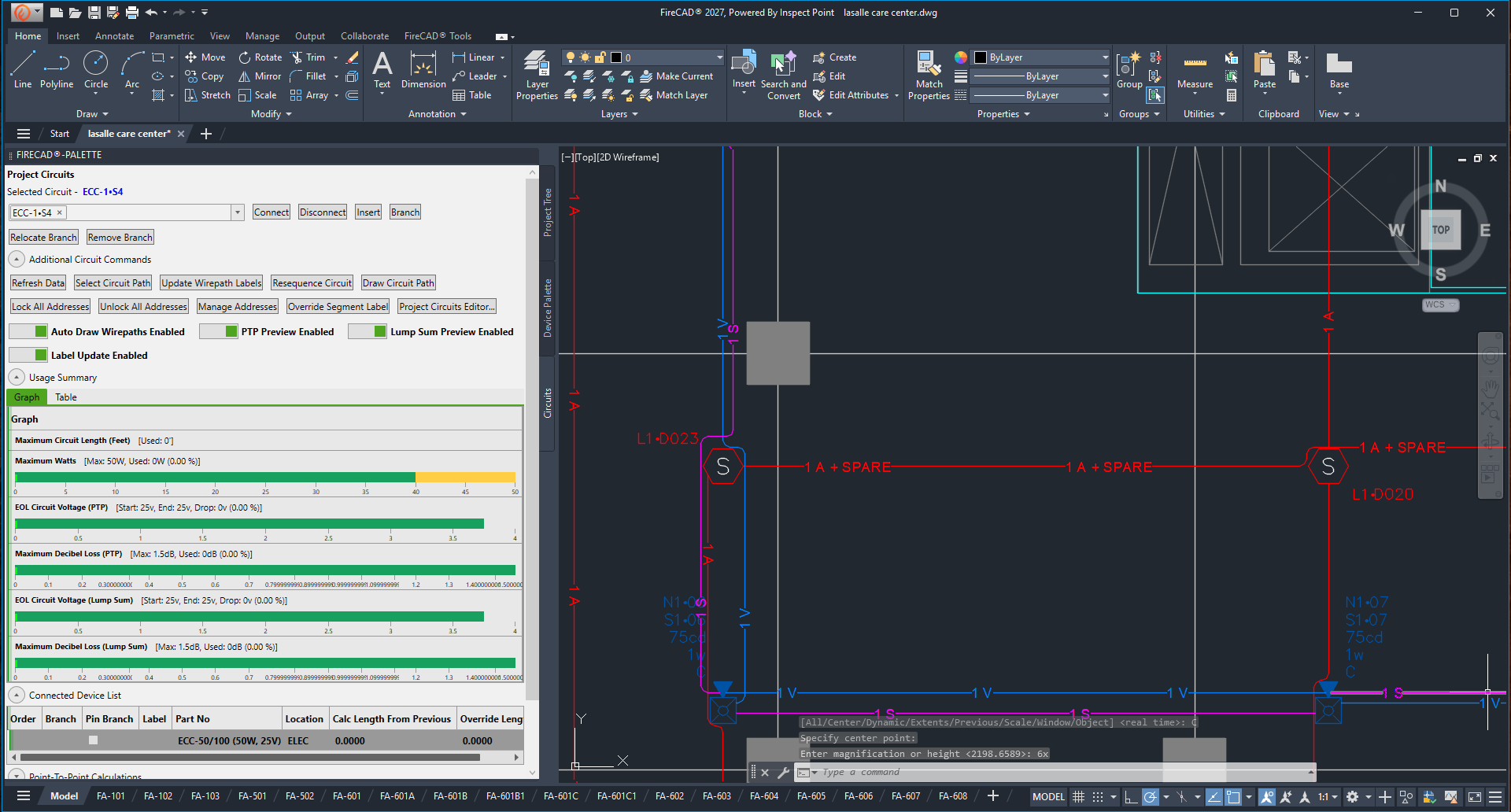
[fill]with text keeps the calculated wirefill and adds to it, for example[fill] + SPARE. It follows changes to the circuits on the segment. -
Per-circuit variables (
[ckt],[node],[pnl],[awg],[cond],[lbl],[qty]) are a label format applied to every circuit on the segment, grouped and counted like the calculated label, for example[qty] [lbl] [awg].
[fill] cannot be combined with the per-circuit variables. FireCAD tells you if you try.
Clearing a Label Override
- Select the segments, open Override Segment Label and click Clear Override, or
- Select the segments and type
ATCLEAR_SEGMENT_LABEL_OVERRIDES. With nothing selected, FireCAD asks whether to clear the label override of every overridden segment on the drawing.
The segments show the calculated wirefill again.
Converting Circuit Pairs
Projects made with earlier versions may have circuit pairs. They keep working and keep counting as before. To turn them into label overrides:
- Select the segments, or select nothing to convert the whole drawing
- Type
ATCONVERT_CIRCUIT_PAIRS - FireCAD says how many segments on how many circuits carry pairs. Click OK to convert
Each label keeps reading exactly as it does now, but as fixed text: it no longer follows changes to the circuits on the segment. The circuit pairs are removed, so wire fill, conduit fill and reports count only the circuits actually routed on the segment.
How Overrides Behave
- Reports and calculations use the calculated label. Conduit IDs are grouped by the calculated label, so an override never changes a segment's conduit ID.
- Segment Label Schedule: when any segment of a conduit ID has an override, the schedule adds an OVERRIDE column listing what those segments show instead.
- Auto Draw Wirepaths never erases or redraws a wire with a label override. Reroute Auto Drawn Wirepaths asks first; if you choose to replace them, each override moves to the new wire between the same two devices. See Auto Draw Wirepaths (Preview).
- Deleting wirepaths: Delete All Segments and the Delete option of the Draw Circuit and Draw Shared Wirepath commands first list the wires you routed yourself or gave a label override, in Delete Wires You Routed or Overrode. Untick the ones to keep, or click Cancel to stop the command. Wires on locked circuits are always kept and are not listed.
- Status marker: with Show Wirepath Status Icons In Model Space on (Options > Circuits), an overridden wire shows an amber OVR marker. It is never printed.
Tips
- Use
[fill] + SPARErather than typing the circuits out, so the label still follows the circuits. - Converted circuit pairs become fixed text. Edit them afterwards with Override Segment Label if you want them to follow the circuits again.
- The old
ATADD_CIRCUIT_PAIRandATREMOVE_CIRCUIT_PAIRcommands still work but print a message that circuit pairs are being retired.
Related Commands
- Auto Draw Wirepaths (Preview)
- Adding a Circuit Pair (Preview)
- Removing a Circuit Pair (Preview)
- Wire Fill Display
FireCAD is the industry-leading AutoCAD add-in for fire alarm system design — from circuit layout to wire routing to code-compliant reports.
Learn more and get started at getfirecad.com →
Inspect Point Integration — Fire alarm system device lists and bill of materials can be pushed directly from FireCAD into Inspect Point, eliminating manual data entry and ensuring every device is ready for inspection scheduling and ongoing asset management.
Learn more here →