
Preview: new in the next FireCAD release, planned for December 1, and in the beta available now.
Commands
| Command | Ribbon button | Places |
|---|---|---|
ATREPORT_SCHEDULE |
Device Schedule | Device schedule |
ATREPORT_LEGEND |
Device Legend | Device legend |
ATREPORT_BOM |
Bill Of Material | Bill of materials |
ATREPORT_CABLE_LEGEND |
Cable and Wire Legend | Cable and wire legend |
ATREPORT_SEGMENT_LABEL_SCHEDULE |
Segment Label Schedule | Segment label schedule |
ATREPORT_CONDUIT_FILL_SCHEDULE |
Conduit Fill Schedule | Conduit fill schedule |
ATREPORT_POINT_TO_POINT |
Point-To-Point Voltage Drop | Point-to-point voltage drop |
ATREPORT_LUMP_SUM |
Lump Sum Voltage Drop | Lump sum voltage drop |
ATREPORT_SPEAKER_SCHEDULE |
Speaker Schedule | Speaker schedule |
ATREPORT_DB_LOSS |
Decibel Loss Report | Decibel loss |
ATREPORT_BATTERY_CALCS |
Battery Calculation Report | Battery calculations |
ATREPORT_PANEL_SUMMARY |
Panel Summary | Panel summary |
ATREPORT_TITLEBLOCK |
Generate Title Block | Title block table |
The voltage drop, speaker and decibel loss reports also have a summary version you can type at the command line: add _SUMMARY to the command (for example ATREPORT_POINT_TO_POINT_SUMMARY).
Ribbon: FireCAD Tools > Reports
Prerequisites
- A FireCAD project must be open
- For circuit reports, the devices must be connected to circuits
Overview
Every FireCAD report can go two ways: to an Excel workbook (the Export panel), or straight onto the drawing as AutoCAD tables (the Reports panel). This article covers the second. The tables use FireCAD's table style, go on the report layer, and remember which report they came from, so FireCAD can tell you when one is out of date and refresh it in place.
Placing a Report Yourself
- On the FireCAD Tools tab, in the Reports panel, click the report you want (or type its command)
- For circuit reports, pick the circuits to include in Select Circuits, then click OK
- FireCAD builds the tables. A progress window shows each panel and circuit as it goes
- The report follows your cursor. Click to place it
A circuit report is one table per circuit, placed together as a group. Move or copy it like any other block.
Where the report goes
Two settings in Options decide where reports land:
| Setting | Tab | What it does |
|---|---|---|
| Add Reports and Risers to Current Drawing | Reports | Ticked: the report is placed in the drawing you have open. Unticked: FireCAD opens a new drawing for it |
| Report Layer | Layers | The layer report tables are placed on |
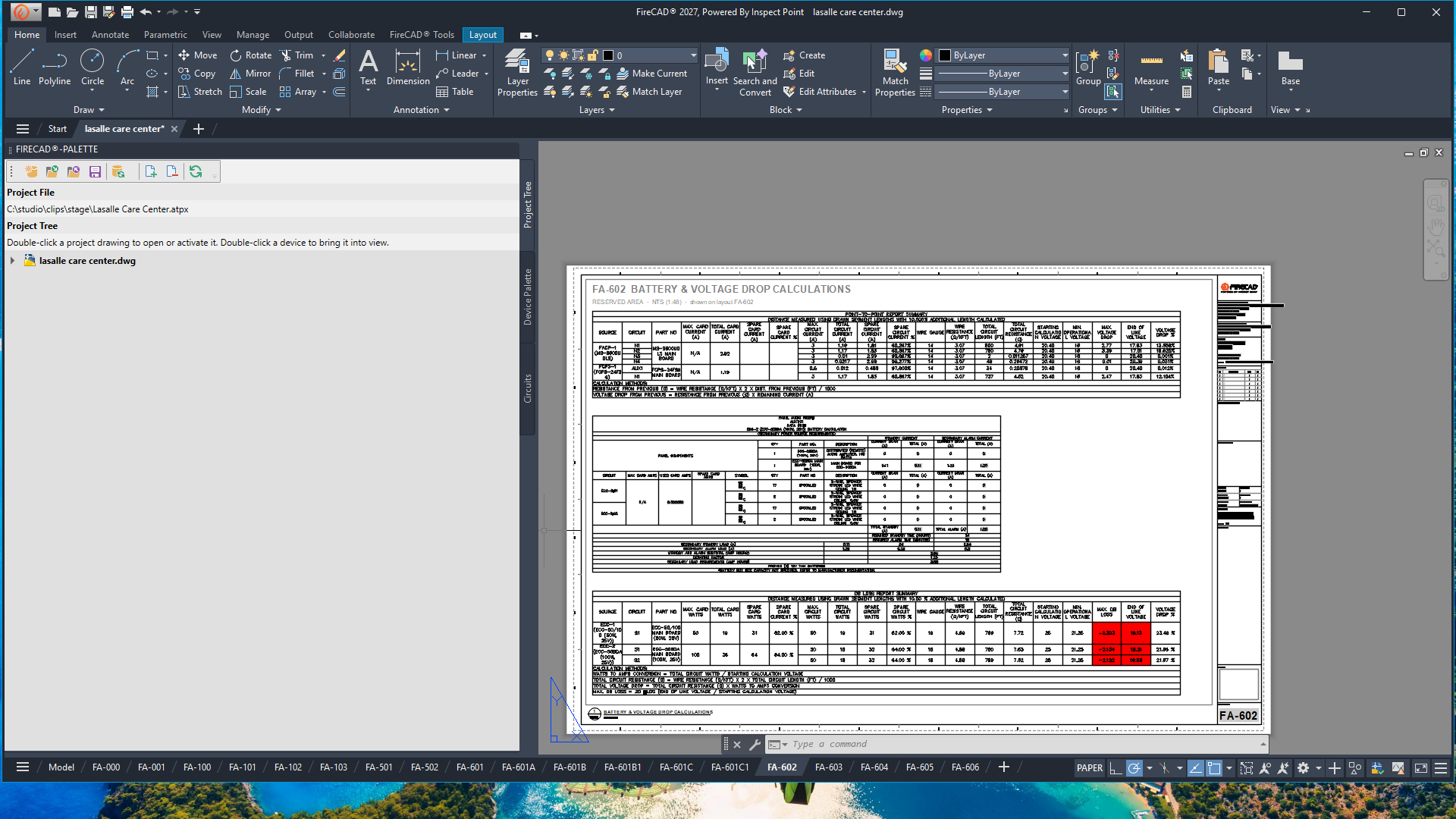
Keeping Reports Up to Date
A placed report is a snapshot. When you change the design afterwards (move a device to another circuit, change a candela setting, add a panel card), the report no longer matches.
The Design Precheck notices this and lists the report under Report Validation with a Refresh Report button. Refresh regenerates the report with current data at the same location, so your sheet layout stays put. You can also type ATREFRESH_REPORT; see Refreshing Reports.
Long Reports on Sheets
A long device schedule can be taller than the sheet it has to fit on. When the Design Assistant places a report on a sheet for you (for example, "Put the device schedule on sheet FA-601"), it handles this for you:
- Fits the sheet's drawing area. The report goes into the free space of the sheet's zone, scaled to fit.
- Splits tall tables into columns. A table taller than the sheet is split into side-by-side tables, left to right, and each part repeats the title and column header rows, so every column reads on its own.
- Starts a continuation sheet when it runs out of room. If the report still doesn't fit, the rest goes on a new sheet with the next number and the same titles, marked (CONT.).
When you place a report yourself with the ribbon button, it is placed as one group where you click and is not split. To fit a long report on a sheet, either ask the Design Assistant, or place it in model space and move it into a sheet's viewport.
Tips
- Run the Design Precheck before you issue drawings. It lists every report that is out of date
- Prefer a summary version (for example the point-to-point summary) when a full report is too long for the sheet
- To change a report's columns or wording, use that report's settings, then refresh the placed report
Related Articles
- Device Schedule Report
- Device Legend
- Cable Legend
- Refreshing Reports
- Design Precheck (Preview)
- Design Assistant (Preview)
FireCAD is the industry-leading AutoCAD add-in for fire alarm system design — from circuit layout to wire routing to code-compliant reports.
Learn more and get started at getfirecad.com →
Inspect Point Integration — Fire alarm system device lists and bill of materials can be pushed directly from FireCAD into Inspect Point, eliminating manual data entry and ensuring every device is ready for inspection scheduling and ongoing asset management.
Learn more here →