
Preview: this page describes the next FireCAD release, planned for December 1, and the beta available now. For the current release, see Design Assistant.
Commands
| Command | Description |
|---|---|
ATDESIGN_ASSISTANT |
Open the Design Assistant panel (also ATASSISTANT and ATAI_REVIEW) |
ATDESIGN_REVIEW |
Open the panel and ask the Design Assistant for a design review |
ATDESIGN_PRECHECK |
Open the panel with the Precheck section expanded |
ATOPTIONS_ASSISTANT |
Open Options on the Design Assistant tab (the panel's Settings button) |
Ribbon: FireCAD > Design Assistant > Design Assistant / Review Design / Design Precheck
Prerequisites
- A FireCAD project must be open
- Your FireCAD licence must include the Design Assistant. Every current Add-in licence and every 2026 or later Standalone licence does
- An internet connection and a sign-in with your FireCAD account (not needed for the Precheck)
Overview
The Design Assistant panel is a dockable AutoCAD palette with three parts:
- The conversation, where you ask the AI Design Assistant about your project or about FireCAD and ask it to do drawing work
- The conversation history down the left side, with your saved conversations for this project and your AI usage
- The Precheck, a section that runs FireCAD's design rule checks on the open drawing without the AI and spends no credits
In earlier releases ATDESIGN_ASSISTANT opened a validation panel with cards, a score and Recheck, PDF Report and Share buttons. That panel is retired: its rule checks are now the Precheck section of this panel, and the PDF Report and Share buttons are gone.
Signing In
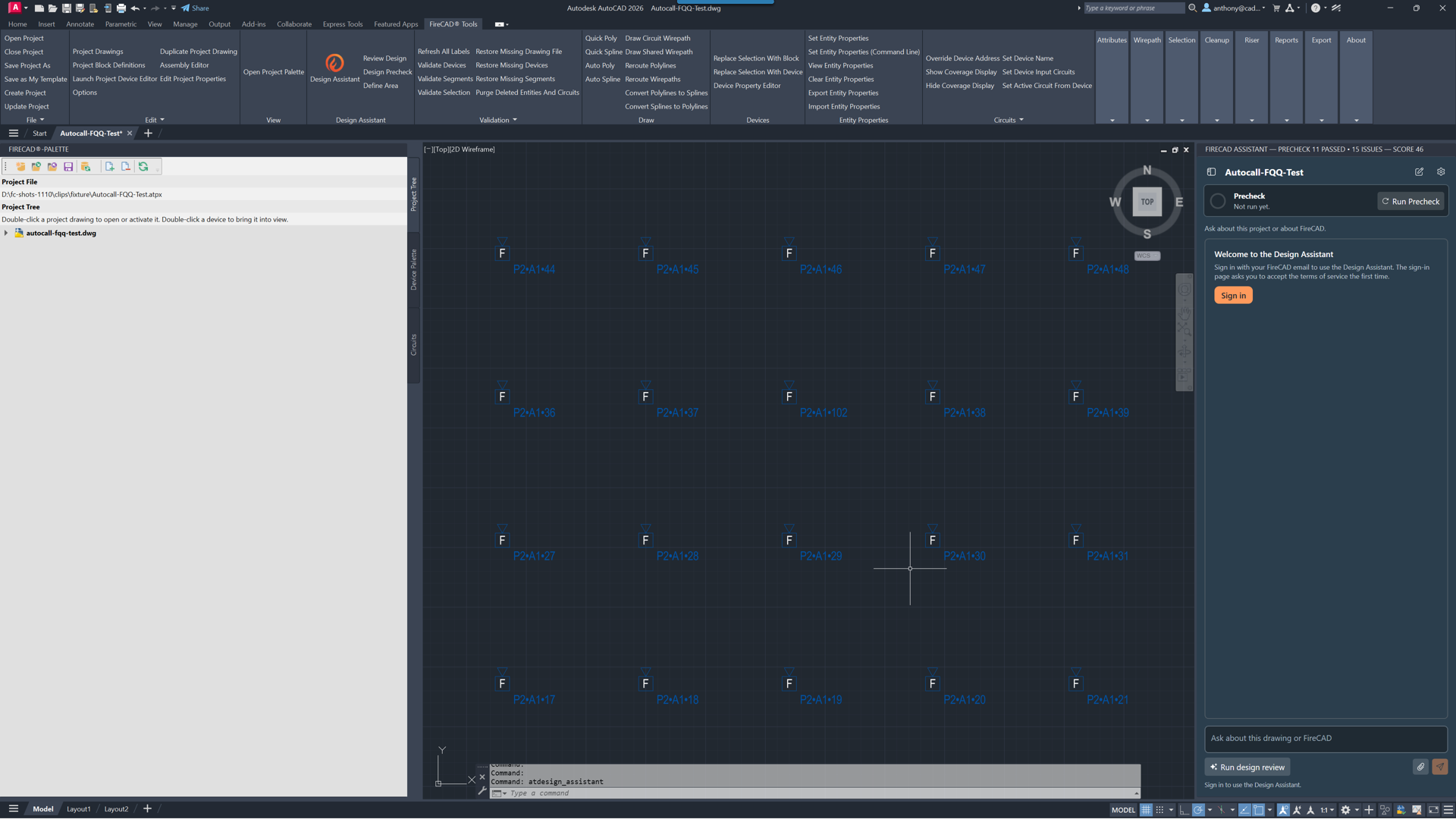
The first time you open the panel, it shows Welcome to the Design Assistant: "Sign in with your FireCAD email to use the Design Assistant." Click Sign in and complete the sign-in page in your browser. The page asks you to accept the Design Assistant terms of service the first time.
If the terms change later, the panel shows The terms have changed; read them and click Accept and continue.
Your name shows in the panel's footer with a Sign out button.
Header
| Item | What it does |
|---|---|
| Hide conversations (sidebar icon) | Shows or hides the conversation history |
| Project name | The open FireCAD project |
| Precheck chip | Shown while the Precheck section is hidden. Click it to bring the Precheck back, expanded |
| New conversation | Starts a fresh conversation (shown here when the history is hidden) |
| Settings | Opens Options on the Design Assistant tab |
Conversation History
The left side of the panel lists your conversations with the Design Assistant for this project.
| Item | What it does |
|---|---|
| New conversation | Starts a fresh conversation. The assistant forgets the current one; nothing in the drawing or the project changes |
| Search conversations | Filters the list as you type |
| A conversation | Click to reopen it. Right-click, or use the delete icon that appears on hover, to Delete conversation |
| Clear this project's history | Appears when you point at the list. Deletes every conversation saved for this project, after you confirm |
| AI usage | A meter of your credits. Point at it to see the credits available, the credits used this month, your monthly allowance and any shared pool |
The Conversation
An empty conversation opens with What can I help you with? and a few suggested requests. Click a suggestion to send it.
Asking
- Type your request in the message box ("Ask about this drawing or FireCAD")
- Press Enter to send. Shift+Enter adds a new line
- The answer appears as it is written. A device link in an answer shows those devices in the drawing
Tip: select the floor plans in the drawing before you ask, to focus the assistant on them.
Buttons Under the Message Box
| Button | What it does |
|---|---|
| Run design review | Runs the Design Precheck on the open drawing and has the assistant review the findings: code compliance by code and section, design recommendations and an overall status. Spends credits like any question. Same as the ribbon's Review Design (ATDESIGN_REVIEW) |
| Attach a file (paperclip) | Attaches a PDF, image or text file to your next question: a specification, AHJ comments, a datasheet, a marked-up plan |
| Stop | Stops the assistant. Work already finished is kept. Pressing Esc over the drawing does the same |
| Send | Sends the message |
While the assistant works on the drawing, a small progress card in the middle of the AutoCAD window says what it is doing. You can turn the card off in Options.
Rating an Answer
Under each answer:
- Helpful (thumbs up) and Not helpful (thumbs down). Not helpful opens a short form for a reason and details; click Submit to send it to FireCAD
- Copy response copies the answer to the clipboard
Credits
Requests that work on your project (placing, wiring, reports, design reviews) spend AI credits from your account. How-to questions about FireCAD are answered from the knowledge base and are free. After each answer the footer says what it used, for example This turn: 3 credits, or that support questions are free.
If you run out, the panel shows You're out of credits with Contact FireCAD support and Keep asking support questions. Support questions and the knowledge base stay free.
The Design Precheck never spends credits.
The Precheck Section
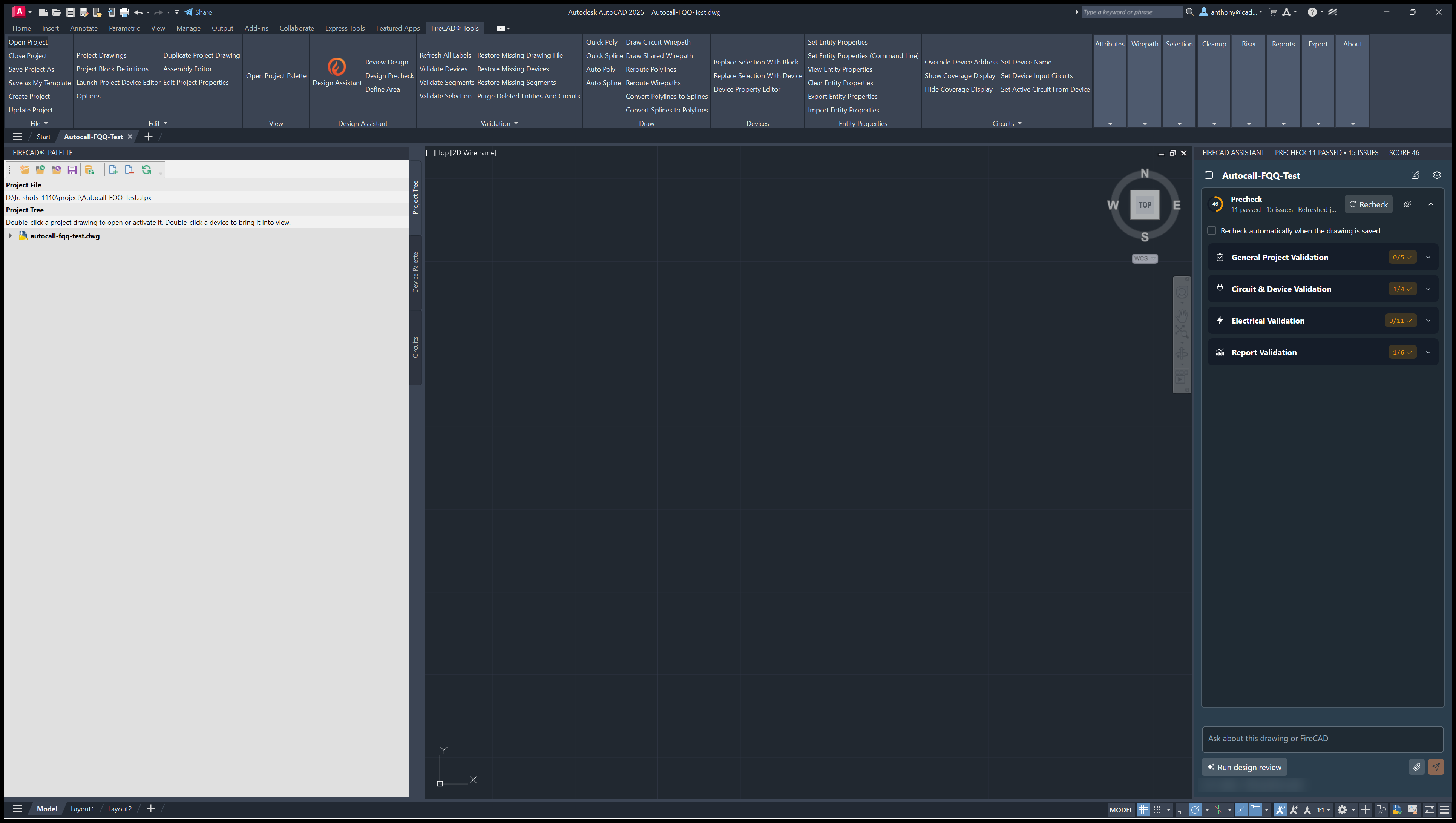
The Precheck section sits above the conversation. Folded, it shows a score ring, the status line (for example 24 passed · 2 issues · Refreshed 2 min ago) and Run Precheck or Recheck. Expanded, it fills the panel with:
- Recheck automatically when the drawing is saved
- The findings, grouped as General Project Validation, Circuit & Device Validation, Electrical Validation and Report Validation, with Zoom buttons for flagged devices and Refresh Report for out-of-date reports
Click the eye icon to hide the section and give the conversation the whole panel. The rules are listed in Design Precheck.
If the Licence Does Not Include the Design Assistant
ATDESIGN_ASSISTANT shows "This licence does not include the Design Assistant. Contact support to add it." (or that it has expired). Contact FireCAD support.
Tips
- The panel works on the open drawing and the open project. Make the drawing you want to work on the active one before you ask or run the Precheck
- Check the assistant's drawing changes and answers before you rely on them. The designer of record remains responsible for the design
- Use the free Precheck as you work, and Run design review when you want the written review
Related Articles
- Design Assistant and Design Precheck Overview
- Design Precheck
- Options: Design Assistant Tab
- A Project Start to Finish with the Design Assistant
- Estimating a Job with the Design Assistant
FireCAD is the industry-leading AutoCAD add-in for fire alarm system design — from circuit layout to wire routing to code-compliant reports.
Learn more and get started at getfirecad.com →
Inspect Point Integration — Fire alarm system device lists and bill of materials can be pushed directly from FireCAD into Inspect Point, eliminating manual data entry and ensuring every device is ready for inspection scheduling and ongoing asset management.
Learn more here →