
Preview: new in the next FireCAD release, planned for December 1, and in the beta available now.
Commands
| Command | Description |
|---|---|
ATOPTIONS_ASSISTANT |
Open the Options Editor on the Design Assistant tab |
ATOPTIONS |
Open the Options Editor on its first tab |
Also from: the Settings button in the Design Assistant panel
Prerequisites
- A FireCAD project must be open
Overview
The Design Assistant tab of the Options Editor holds your standing preferences for the Design Assistant: what it should assume instead of asking you or guessing. Apart from the voltage drop calculation, these settings guide only the Design Assistant; FireCAD's own commands and reports keep their own settings. The preferences are saved for your Windows user, so they apply to every project you open.
A change takes effect at your next question and starts the conversation afresh. Click Apply to save, or Cancel to leave everything as it was.
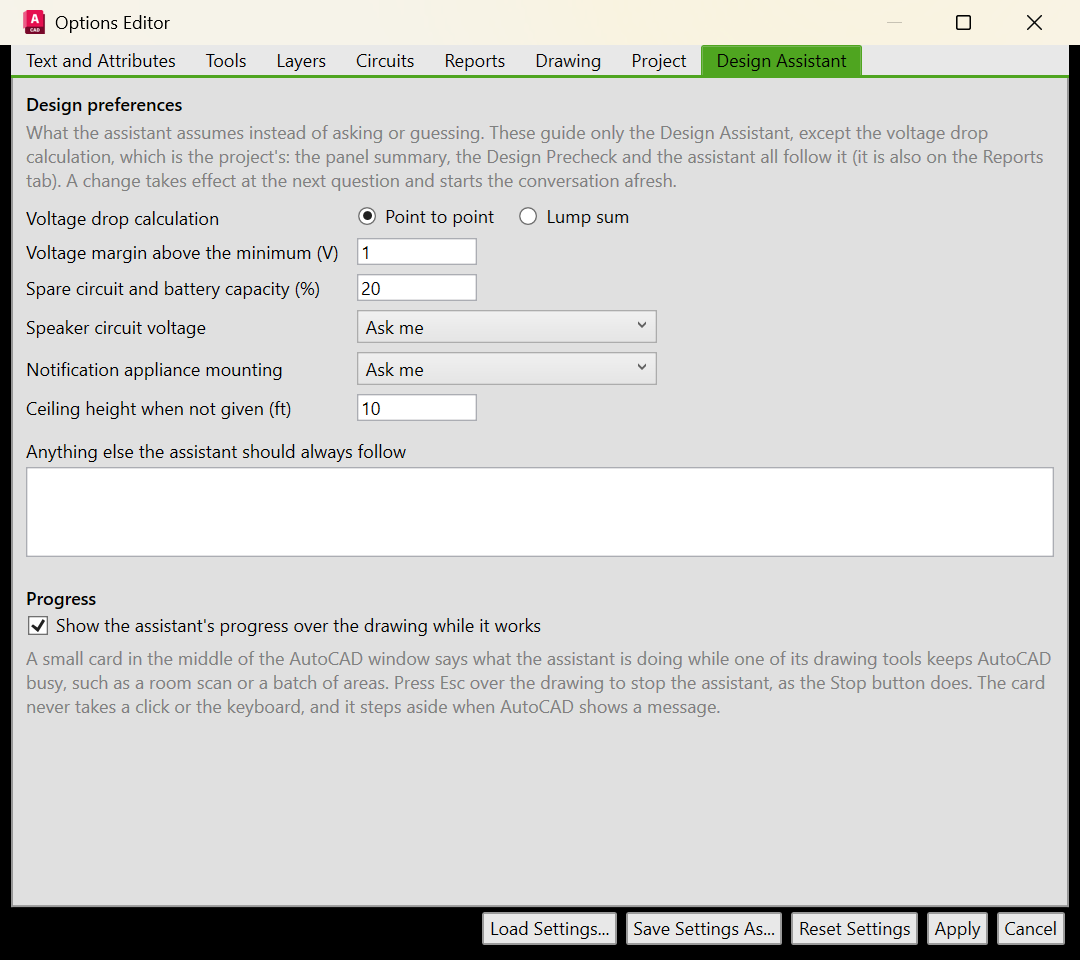
Design Preferences
| Setting | What it does | Default |
|---|---|---|
| Voltage drop calculation | Point to point or Lump sum. This one is the project's setting, not only the assistant's: the Panel Summary, the Design Precheck and the Design Assistant all follow it. It is the same setting as Options > Reports > Voltage drop calculation (Panel Summary and Design Precheck) | As set for the project |
| Voltage margin above the minimum (V) | Volts to keep above each device's minimum operating voltage at the end of a circuit. 0 means none | 1 |
| Spare circuit and battery capacity (%) | Share of each circuit's current and addresses, and of the batteries, to leave spare. 0 means none | 20 |
| Speaker circuit voltage | Ask me, 25 V or 70.7 V | Ask me |
| Notification appliance mounting | Ask me, Ceiling or Wall | Ask me |
| Ceiling height when not given (ft) | The ceiling height to assume when neither the plan nor you give one. 0 means the assistant asks | 10 |
| Anything else the assistant should always follow | Your own standing instructions, up to 1,000 characters. For example: our AHJ wants a pull station at every exit; use System Sensor devices where there is a choice | Empty |
Progress
Show the assistant's progress over the drawing while it works shows a small card in the middle of the AutoCAD window that says what the assistant is doing while one of its drawing tools keeps AutoCAD busy, such as a room scan or a batch of areas. The card never takes a click or the keyboard. Press Esc over the drawing to stop the assistant, as the panel's Stop button does.
Tips
- Set the preferences once and the assistant stops asking the same questions on every project
- Change the voltage drop method here or on the Reports tab: it is one setting, and the Panel Summary and the Design Precheck change with it
- The Design Precheck never spends credits, whatever is set here
Related Articles
- Design Assistant (the panel)
- Design Assistant and Design Precheck Overview
- Options and Configuration
FireCAD is the industry-leading AutoCAD add-in for fire alarm system design — from circuit layout to wire routing to code-compliant reports.
Learn more and get started at getfirecad.com →
Inspect Point Integration — Fire alarm system device lists and bill of materials can be pushed directly from FireCAD into Inspect Point, eliminating manual data entry and ensuring every device is ready for inspection scheduling and ongoing asset management.
Learn more here →